iOS 17+ Usage Guide
Overview
tip
- Apple changed the protocol on iOS 17+, so a virtual network adapter is required to connect to iOS devices. Special instructions apply here.
- On iOS 17+, you must use the latest agent IPA — at least version 7.1.0 or above.
Important — read this
- On iOS 17.4+ with control center 7.5.0+, using the non-driver method to start automation is faster.
- USB control center 7.5.0+ is optimized for iOS 17.4+ and does not require driver installation. You can skip all steps below and run ioscenter.exe directly by double-clicking it.
- When creating an automation connection, no tun-prefixed tunnel link will appear in the Network Connections panel.
- To configure iOS 17.4+ to start automation with the driver method, open bridgebin/config/config.toml in the control center folder with Notepad and set
run174iOSTunnelTypeto1. Otherwise, leave it unchanged.
Standalone activator
- Standalone iOS 17 activation also requires the steps below. On iOS 17.4+, skip all steps below and activate directly.
Install the USBNCM Driver
- After downloading the iOS USB installer and extracting it, you will find usbncm_driver.exe. Right-click it and choose Run as administrator.
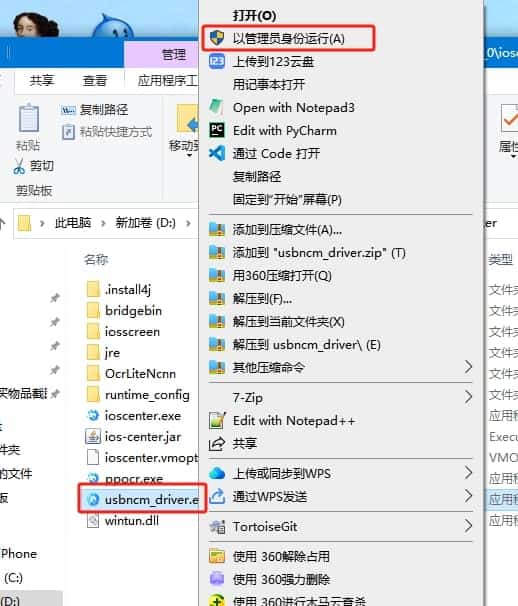
- After running usbncm_driver.exe, if you see install ok, the driver is installed.

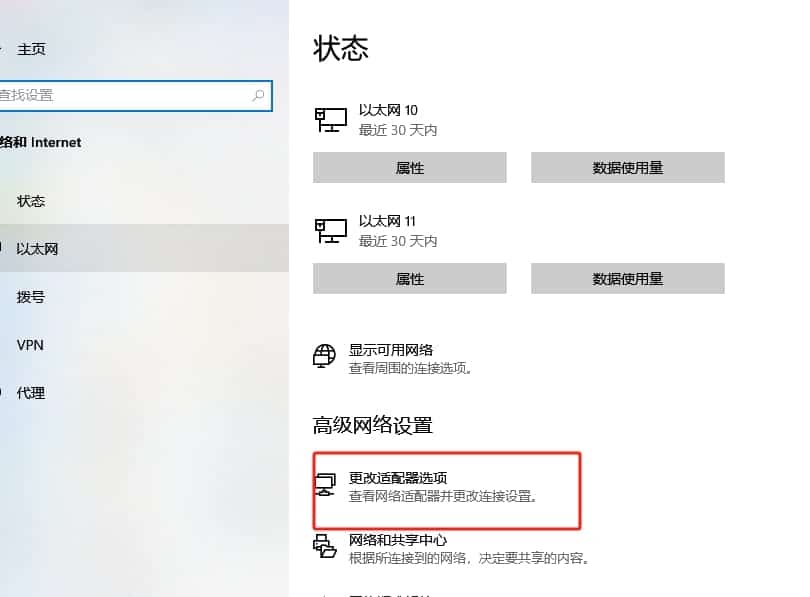
- On a phone running iOS 17+, open Network Connections. If a USB NCM virtual network adapter appears, the driver is installed and the phone is recognized correctly.


Run Programs as Administrator
tip
This step is especially important — a virtual channel requires administrator privileges.
- If you are already logged in to Windows as the Administrator user, skip the steps below.
- If you are a standard user, follow these steps:
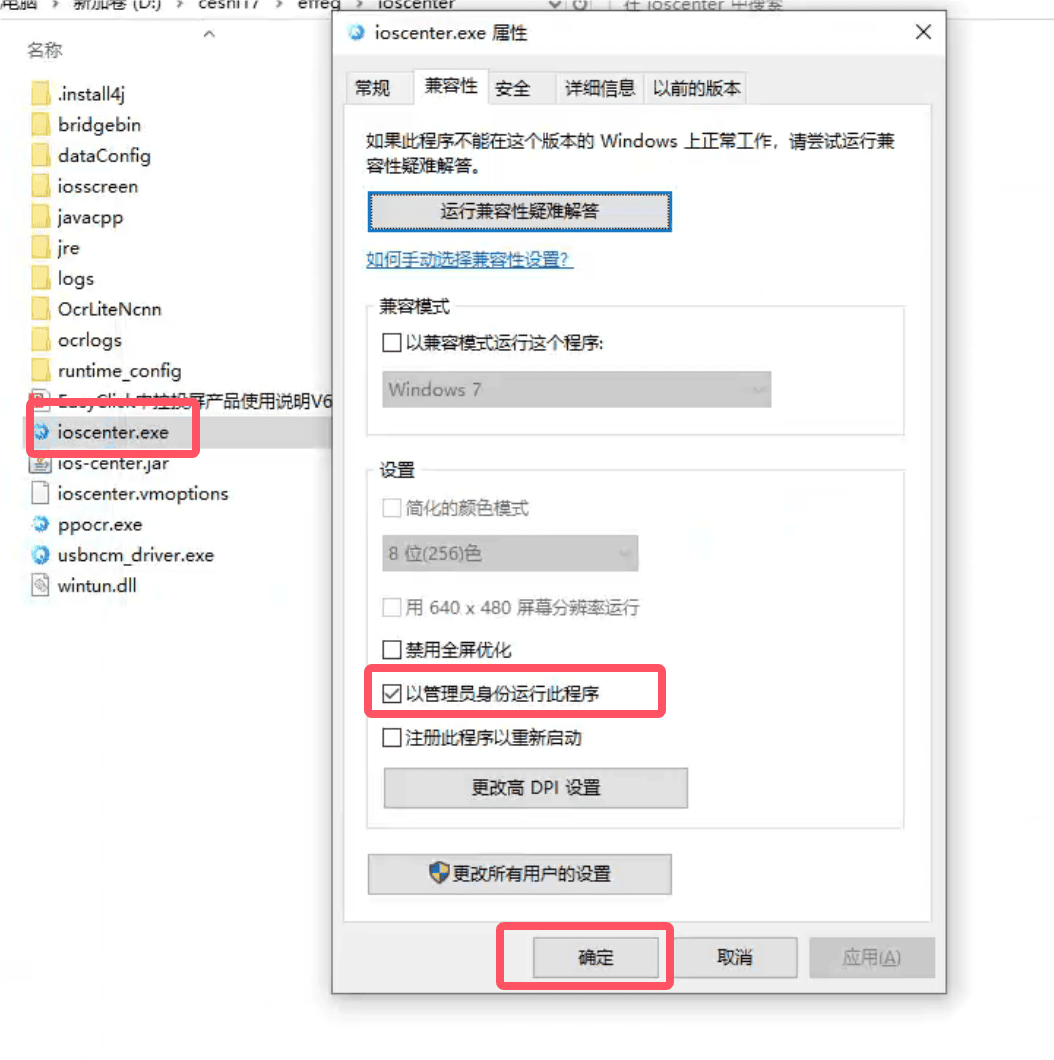
- In the control center folder, set the control center launcher to run as administrator: right-click ioscenter.exe, choose Properties, open the Compatibility tab, check Run this program as an administrator, then click OK.
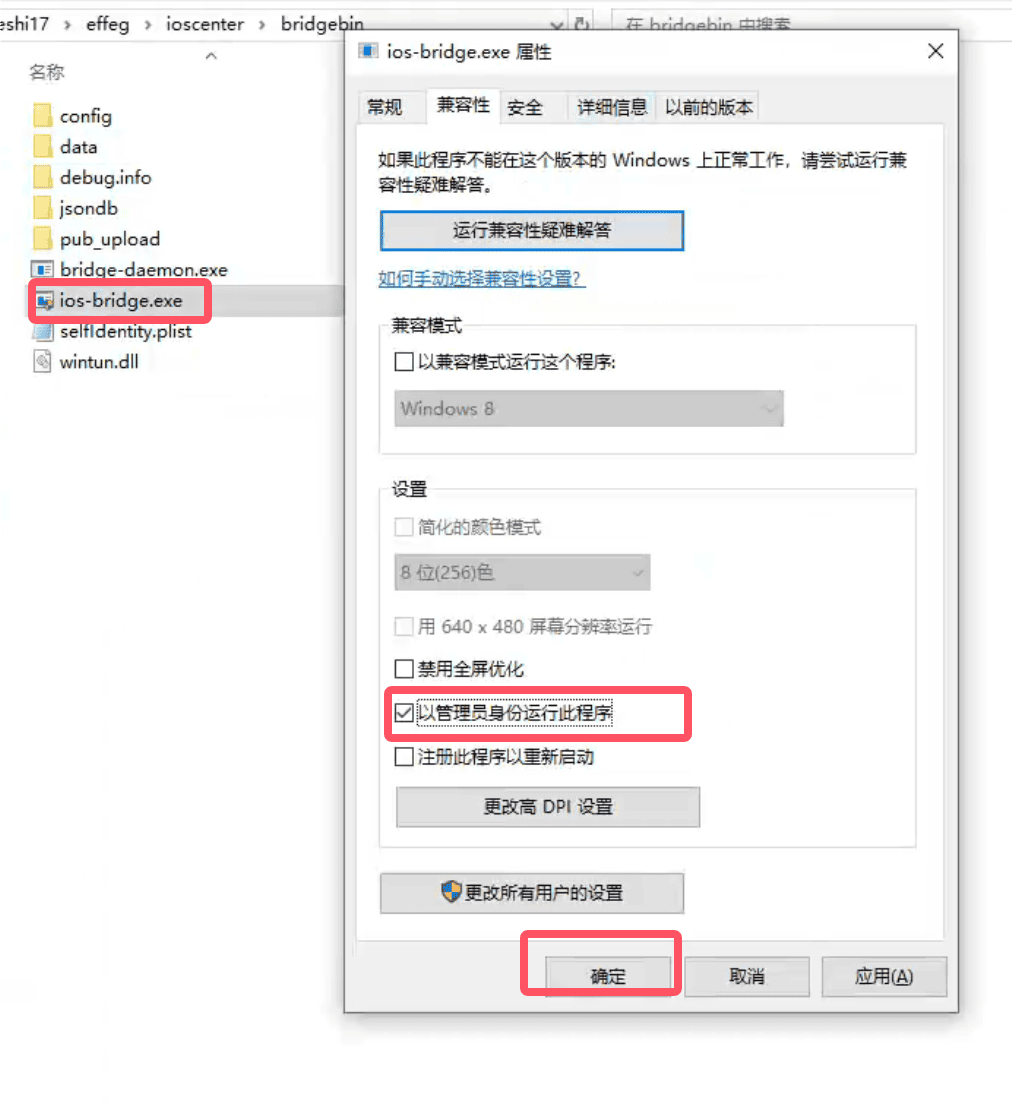
- In the control center's bridgebin folder, set the bridge program to run as administrator: right-click io-bridge.exe, choose Properties, open the Compatibility tab, check Run this program as an administrator, then click OK.
Disable User Account Control Notifications
- After the settings above are complete, disable User Account Control notifications in Windows.
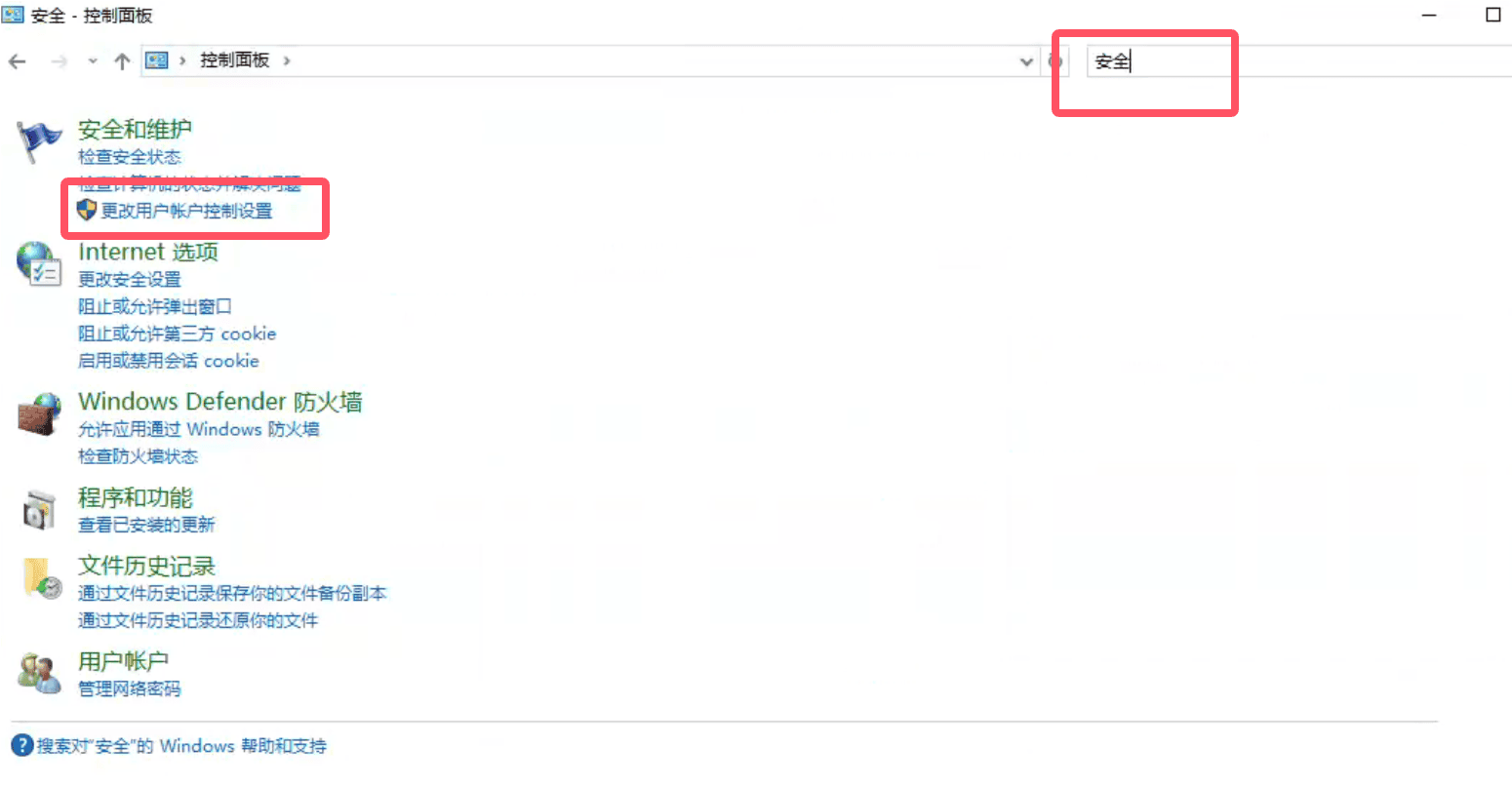
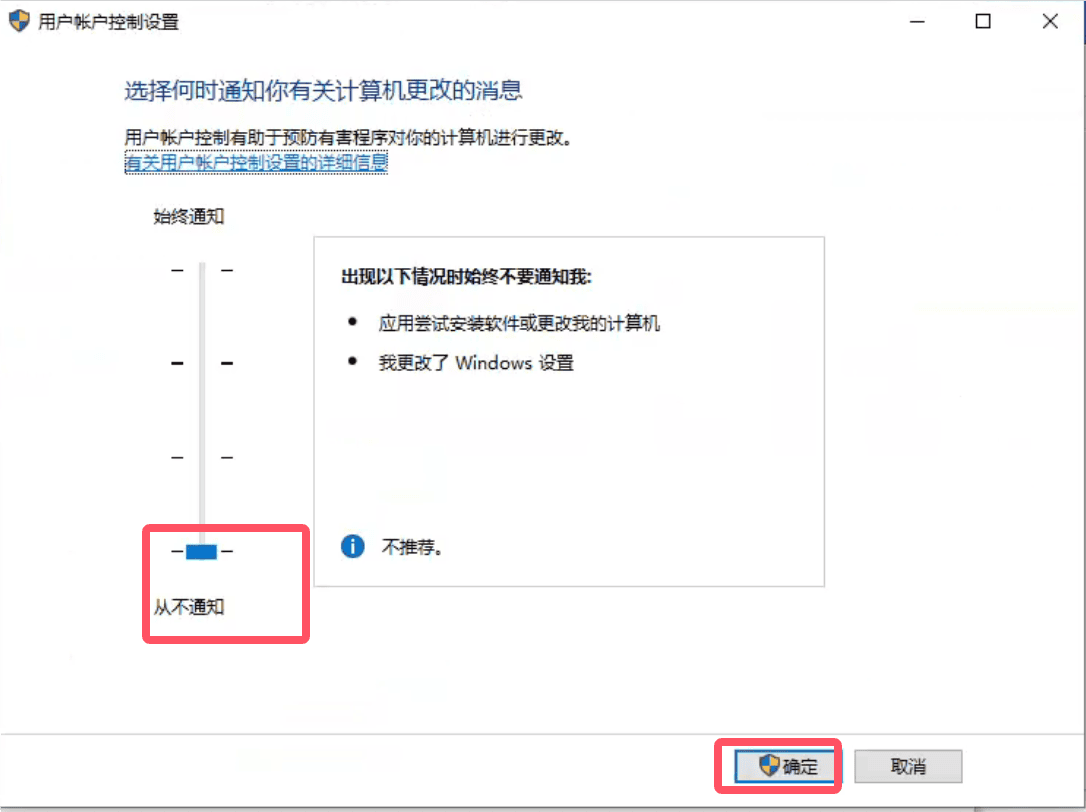
- Go to Control Panel → Security and Maintenance → Change User Account Control settings, choose Never notify, then click OK to save.
- Or follow this article to disable it: https://jingyan.baidu.com/article/154b46311138f028ca8f41fb.html
Start Automation
- In the control center, click Start Automation. On iOS 17+, automation does not start instantly because a virtual network adapter channel must be established. You can verify this in the Network Connections panel — the channel appears as a tun-prefixed adapter.
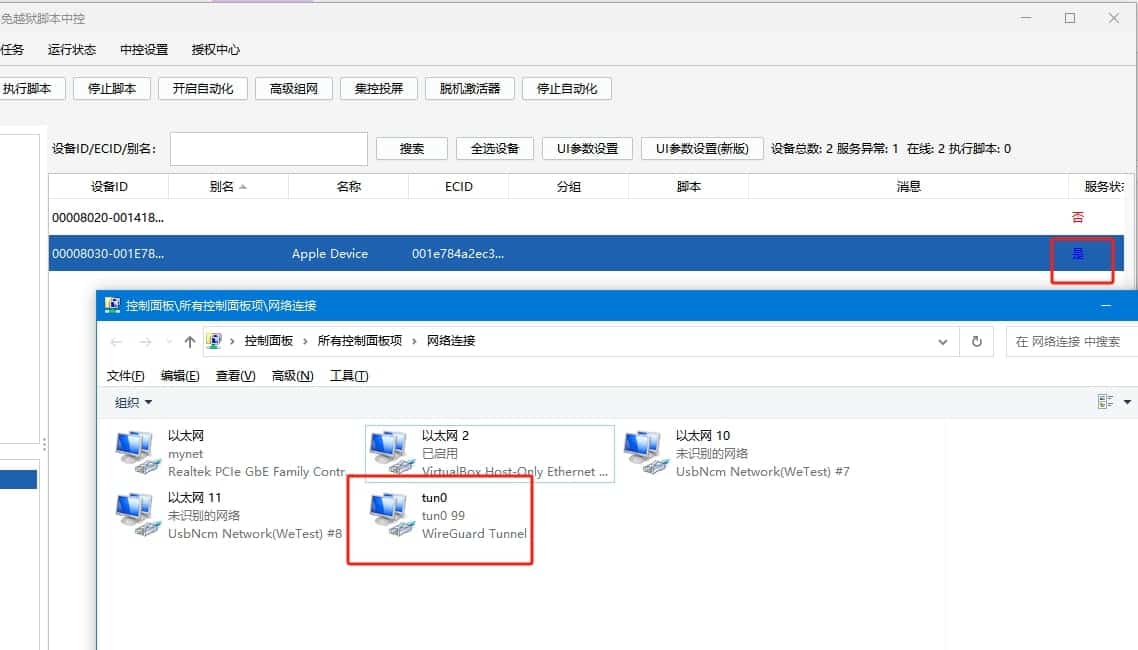
- Once the channel is ready, the control center service status turns blue and shows Yes, meaning automation started successfully. All other operations are the same as on lower iOS versions.
Notes
- Each device connection creates a virtual network and tun channel. Seeing multiple adapters in Network Connections is normal.
- If the channel fails to establish or the driver cannot be installed, try live mirroring once with the latest version of i4Tools (爱思助手); that can also install the driver.
- The virtual network adapter disappears automatically when you unplug the device and reappears when you plug it back in.
Other Issues
- If automation fails to start, try the USB flash-disconnect feature or unplug and reconnect the device once.
- If the EC driver conflicts with i4Tools, or i4Tools keeps the device connected, uninstall i4Tools first, complete EC installation, then reinstall i4Tools.