OTG HID tutorial
Overview
- iOS currently supports ESP32S3 boards
- OTG simulated actions do not conflict with proxy IPA — combine or use separately
- OTG can skip proxy IPA and use
image.captureFullScreenNoAuto— no mirroring, less detection risk, no Bluetooth interference - Firmware is free; buy boards on Taobao, Pinduoduo, 1688, etc.
- OTG uses the data cable — a 3-in-1 adapter (Ethernet + OTG + charging) is recommended
-
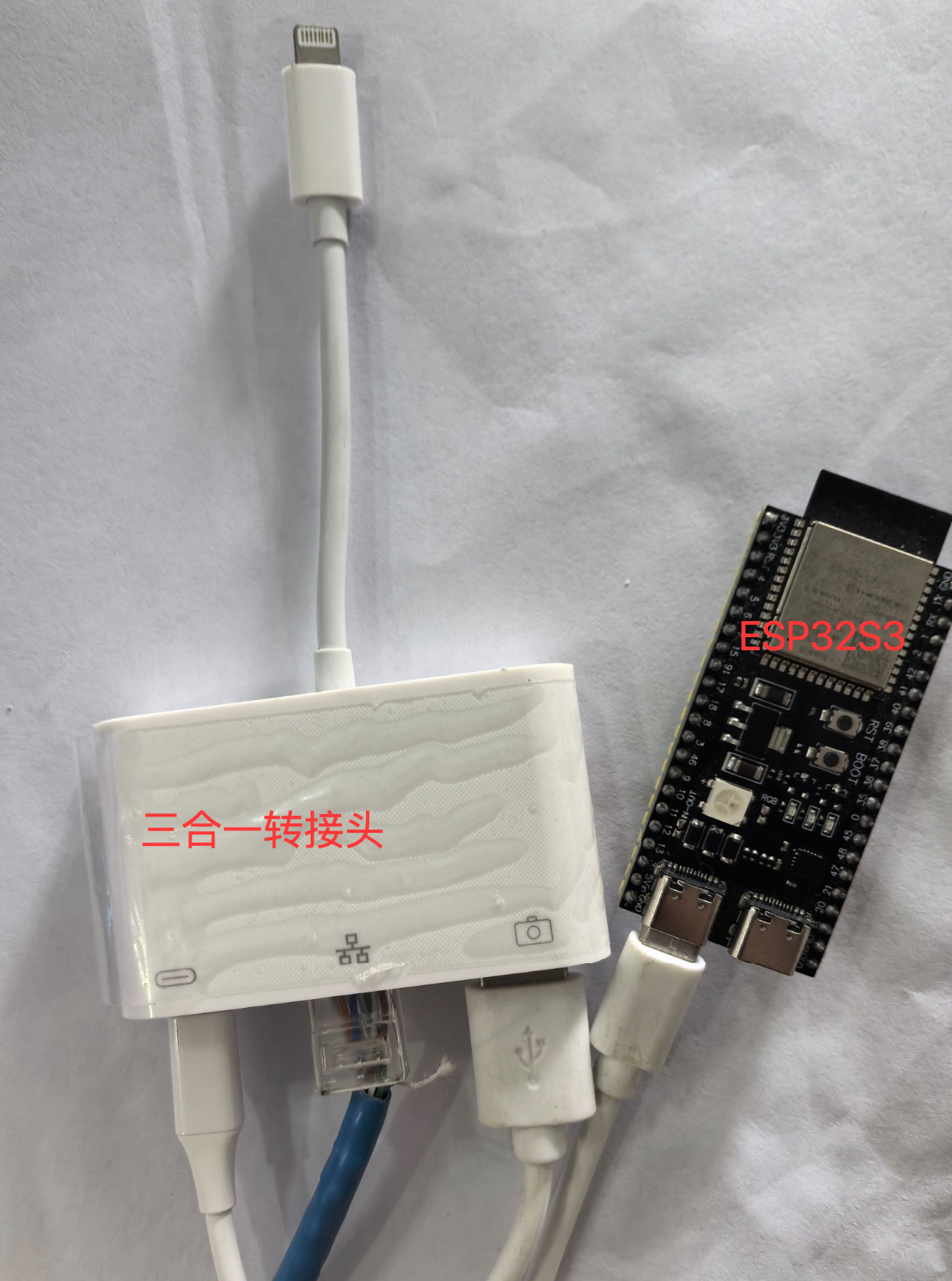
Download firmware
- Cloud drive: iOS resources → USB edition → OTG firmware
- Currently ESP32S3 only; iOS 17+ required
Flash firmware
- Same as Android — see Android Bluetooth flash firmware
- Select iOS USB OTG firmware
- MAC address — same as Android docs
Bind OTG device
- Label board and phone with MAC for mapping
- Control center → right-click device → OTG HID settings → Bind OTG device
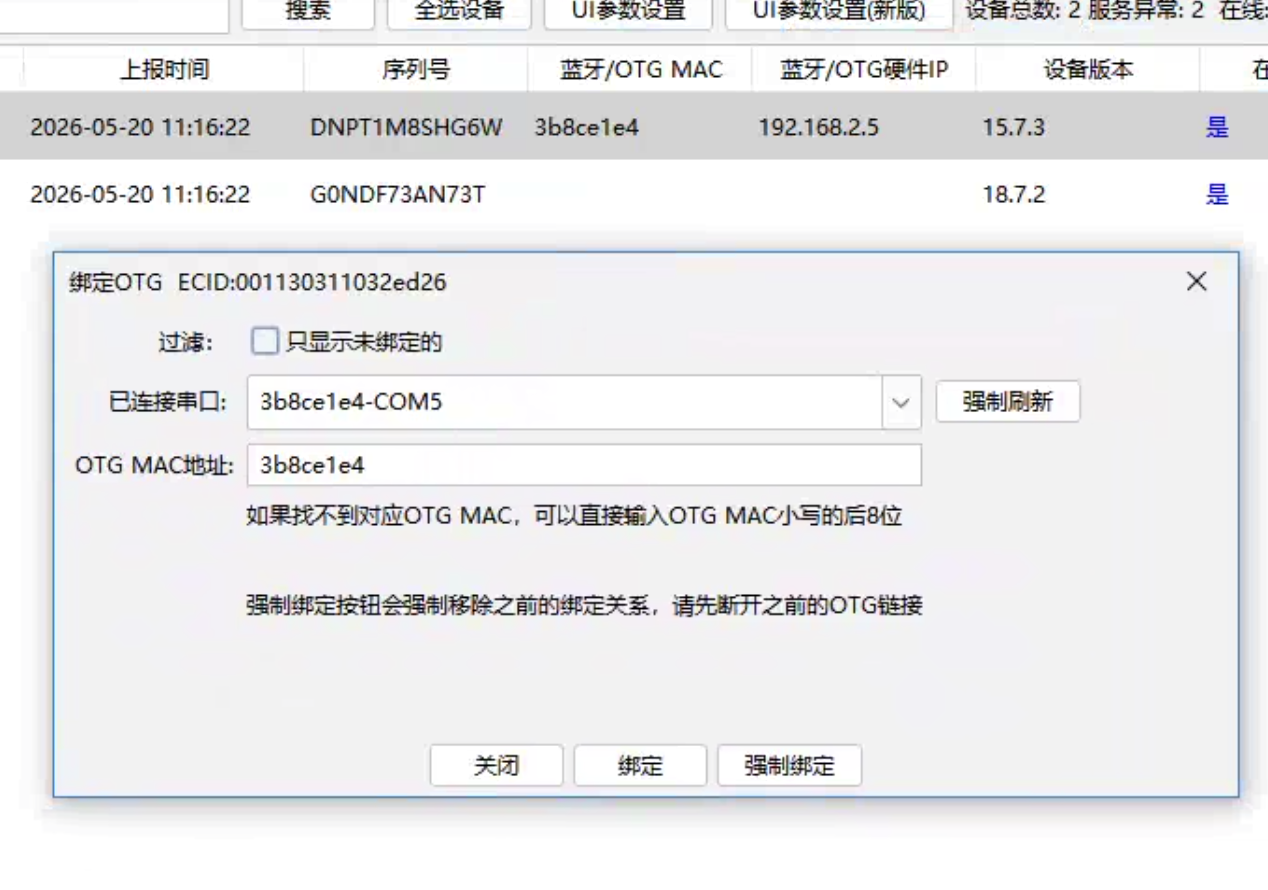
- Pick serial port; or clear Show bound only, Force refresh, or enter last 8 MAC chars
- Bluetooth/OTG MAC column shows bound hardware
OTG networking
- Right-click → OTG HID settings → Set WiFi (provisioning)
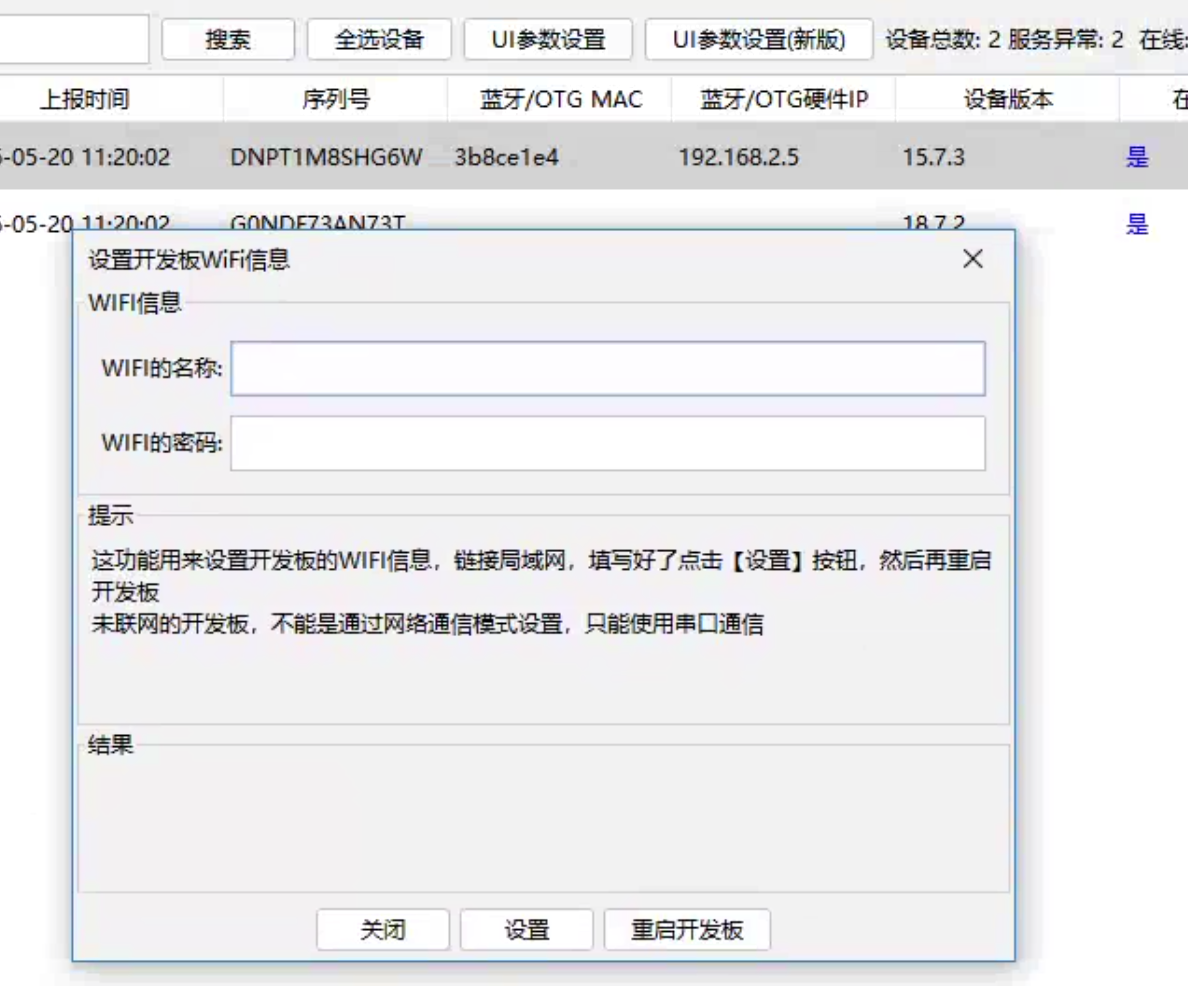
- Enter SSID/password, Set, restart or replug board
Scan OTG IP
- Control center needs board IP — provision Wi‑Fi first, then scan
- Right-click → OTG HID settings → Scan board IP
- IP appears under Bluetooth/OTG hardware IP
- After bind + network, PC is only needed for setup
Enable wireless debugging on phone
- OTG occupies the cable — use wireless debugging to reach the control center
- Settings → General → Transfer or Reset iPhone → Reset → Reset Location & Privacy — clears trust with PC
- Install iTools / 爱思助手 on PC, connect USB, tap Trust
- iTools → Toolbox → iTools screen mirroring installs Bonjour (required for wireless debugging) — follow prompts until Process manager → Bonjour service running
-
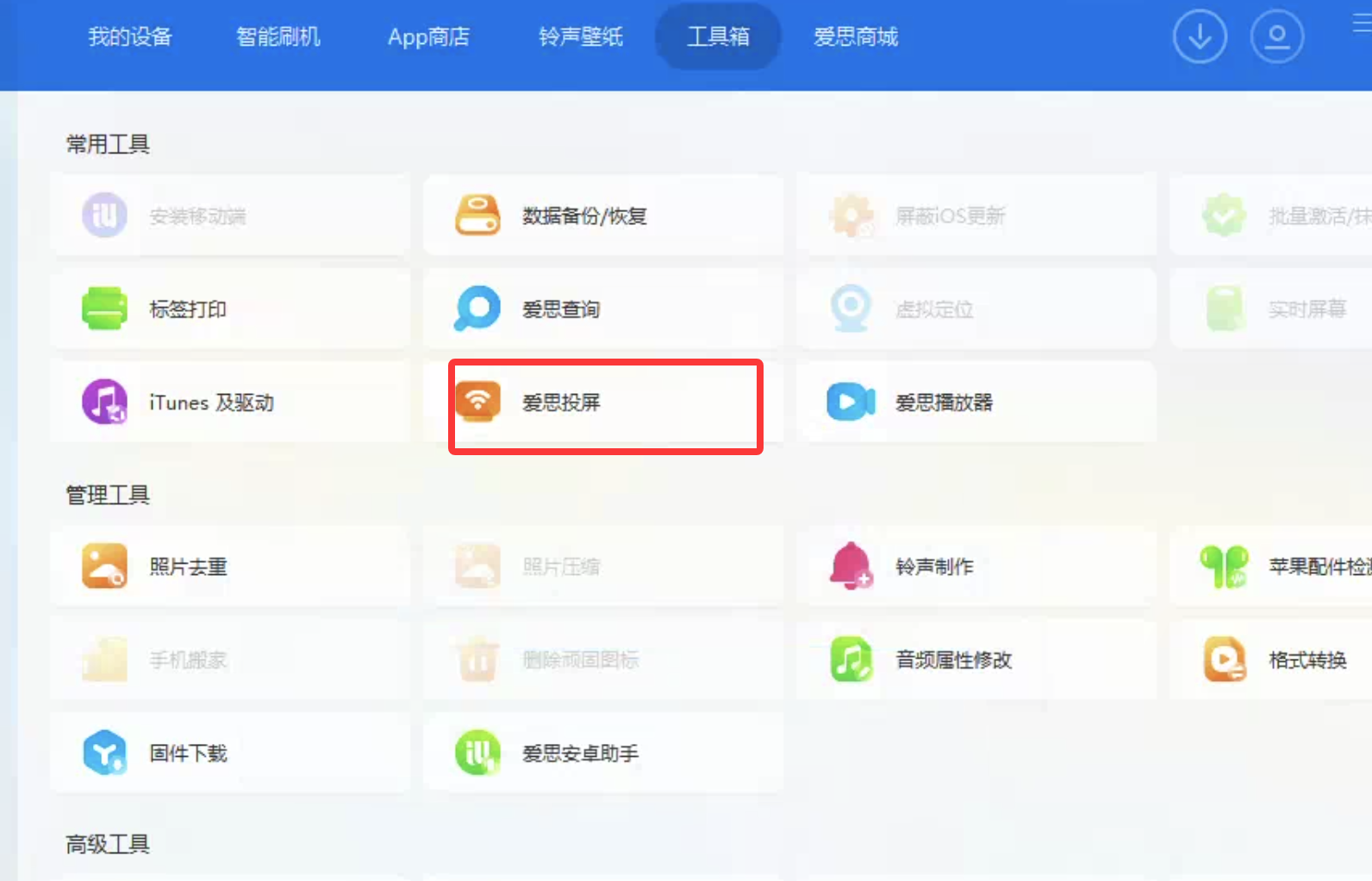
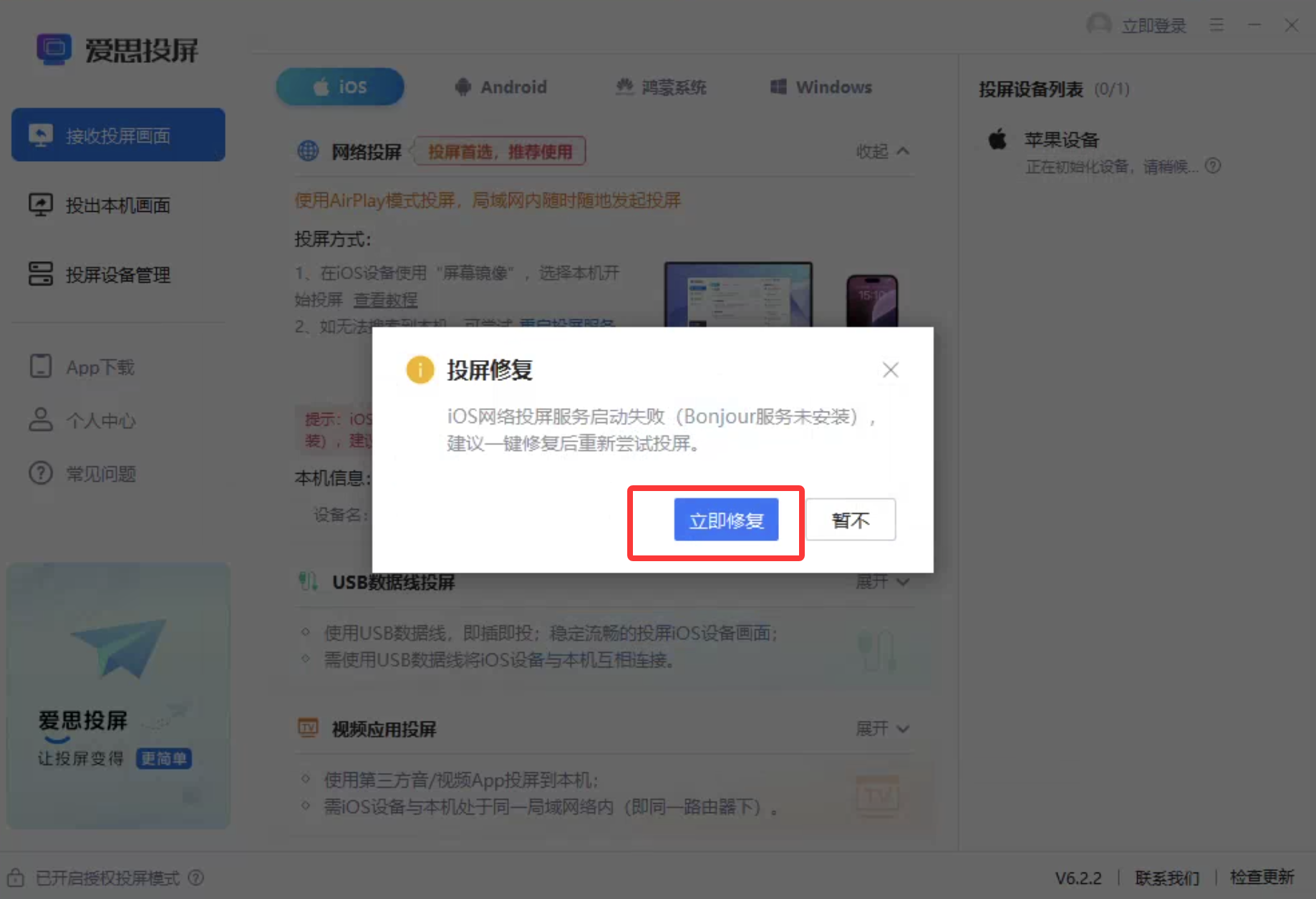
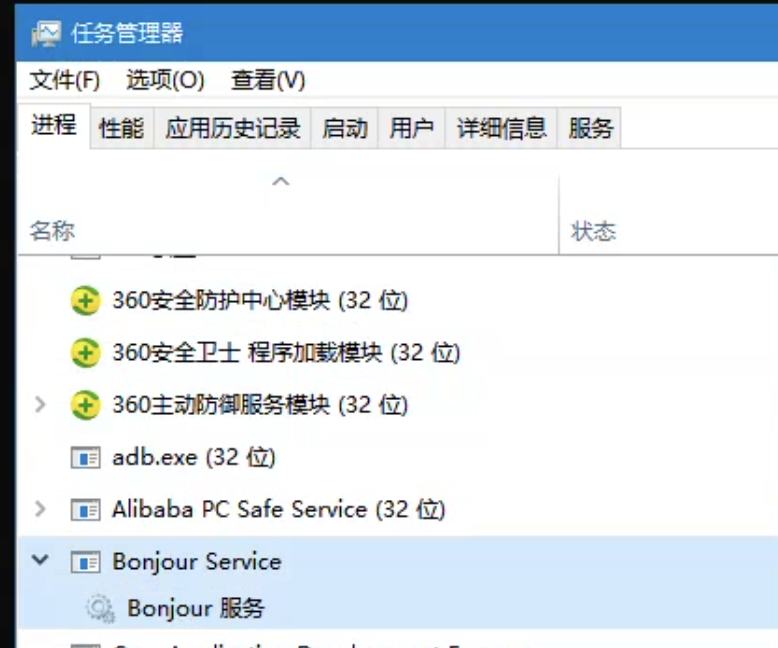
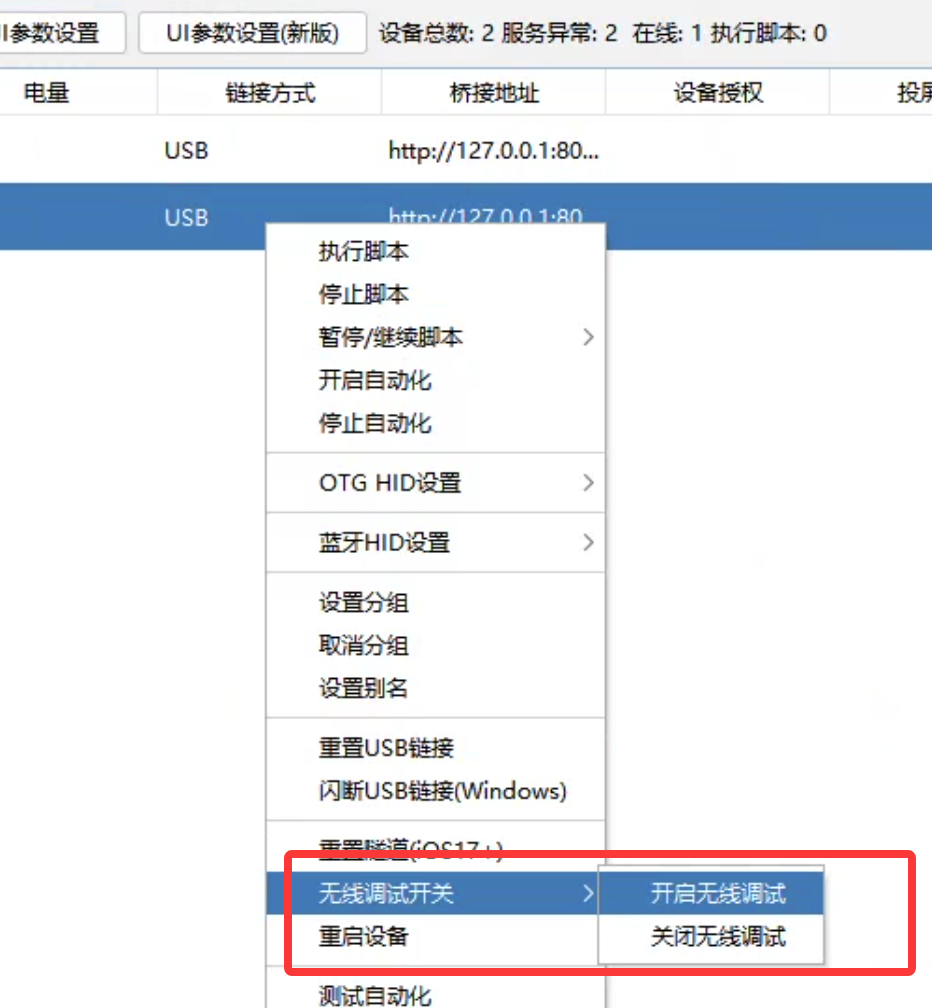
- With Bonjour running, control center right-click → Wireless debugging → Enable, restart phone — connection shows Network

Test OTG
- With wireless debugging, firmware, and phone settings ready:
- Connect OTG — mouse dot on phone, or Settings → Ethernet → EasyClick NCM+HID input
- Right-click → OTG HID settings → Test OTG
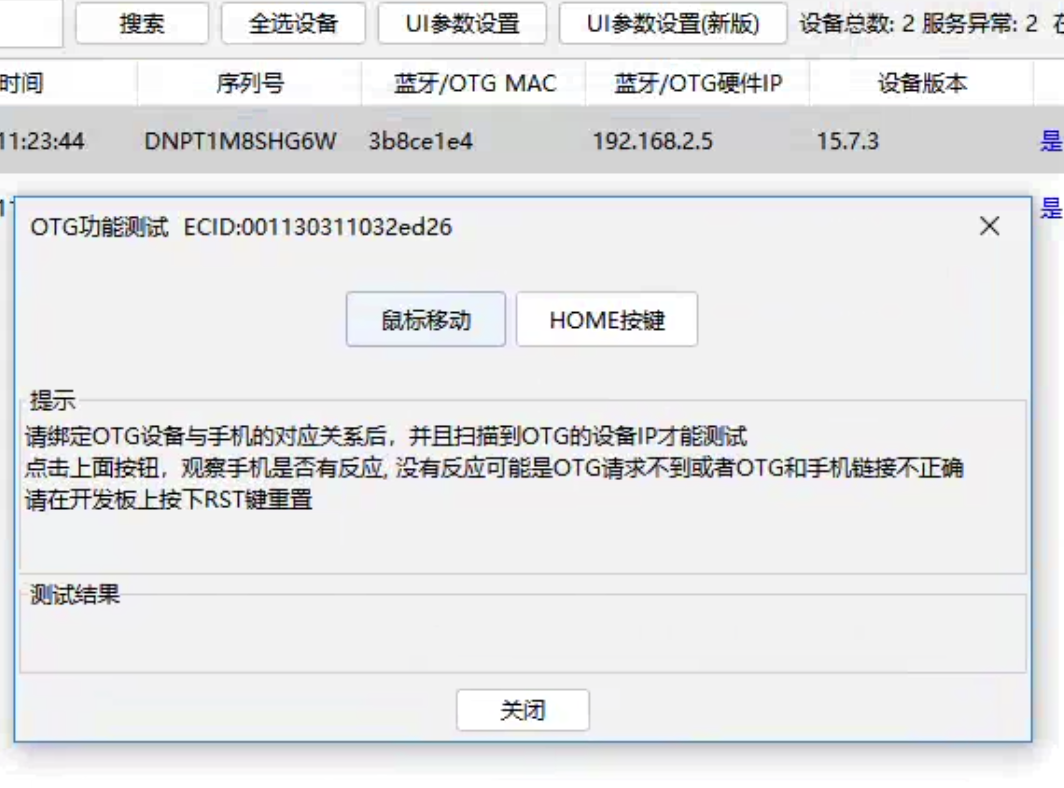
- Click Mouse move or HOME — phone should react
Keyboard shortcuts
- Same as BLE — Full Keyboard Access → Commands; scripts use
otgEvent.keyPressChar - Right-click → Bluetooth BLE settings → Add keyboard shortcut
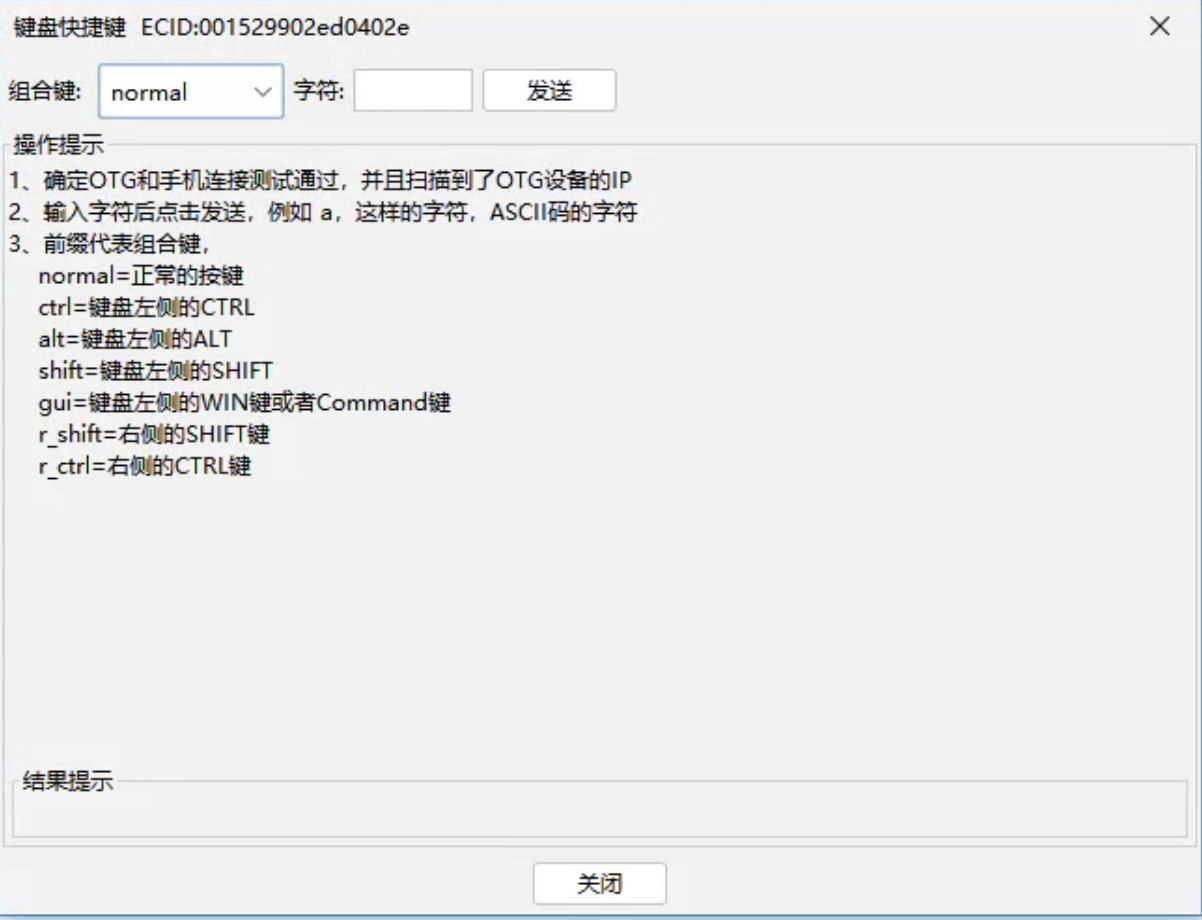
- Example:
- Commands → Notification Center → shortcut dialog
- Control center: gui + b, Send, Done on phone
- Send gui+b again → Notification Center opens
Input
With proxy IPA
- If proxy IPA starts automation, use inputText, etc.
Custom IME
- EC standalone main app as IME: imeApi with
imeApi.forwardImeServerfirst
Without proxy IPA or IME
- Cloud: iOS resources → iOS Shortcuts helper.zip
- Shortcuts fetch URL → clipboard → paste (same as BLE doc)
- Example screenshots and steps match Bluetooth BLE tutorial
- Script: Type text via Shortcuts
Video and images
With proxy IPA
- Proxy IPA inserts to Photos
Without proxy IPA
- iOS Shortcuts helper.zip — same as BLE
- Shortcuts download to Photos — see BLE Without proxy IPA section
- Script: Insert to Photos via Shortcuts
FAQ
Can't enable wireless debugging
- Reset Location & Privacy, reconnect and trust
- Bonjour must run; phone and PC on same LAN and pingable — reference
- If control center can't enable remote debug: iTools → Feature toggles → WiFi debugging
Which settings to enable on iPhone for OTG
- Same as BLE — see Which settings to enable on iPhone for BLE
Using with scripts
- IDEA: Non-automation capture, Live test (non-automation)
- Scripts:
image.captureFullScreenNoAuto,image.startPreCapScreen - No node APIs; OCR, YOLO, color, template match work
Absolute coordinates
- Start (0,0); restart phone if wrong
Control center shows wireless serial name
- Restart control center; close flash tool before opening control center