Overview
AI Agent vs this guide
This page covers writing EC scripts in Cursor / IDEA. If you don't want to code, use the built-in AI Agent in the new control center (Chinese chat + visual workflows).
tip
- Based on IDE plugin 9.27.0+; any control center version works
- Tools: Cursor and IDEA
- IDEA is full-featured (new projects, etc.); Cursor assists with coding, auto-fix, compile/run
- Any LLM works — configuration is similar
- iOS USB and standalone editions work the same; USB can't preview UI, standalone can
Project layout
- Open a folder in IDEA, then New Module:
-
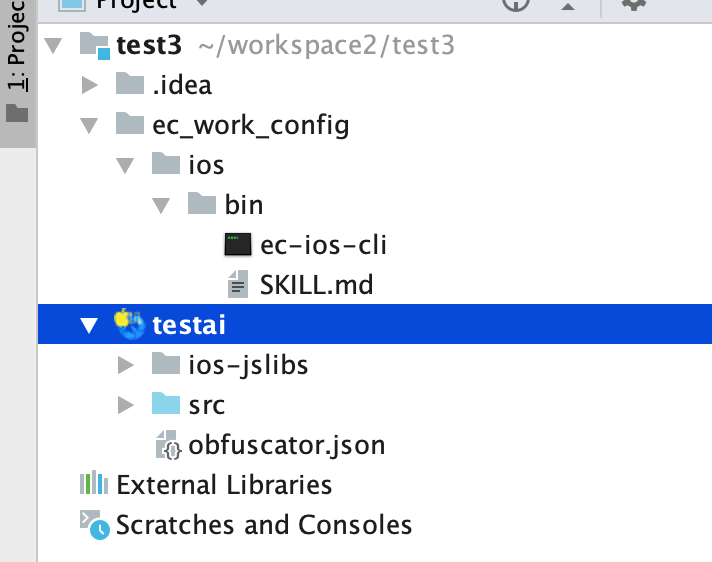
- If ec_work_config/ios/bin is missing, close and reopen the project folder
- ec_work_config/ios/bin holds EC iOS build CLI and SKILL.md
Coding with Cursor
Open project
- In Cursor, open the project folder, not a single module
-
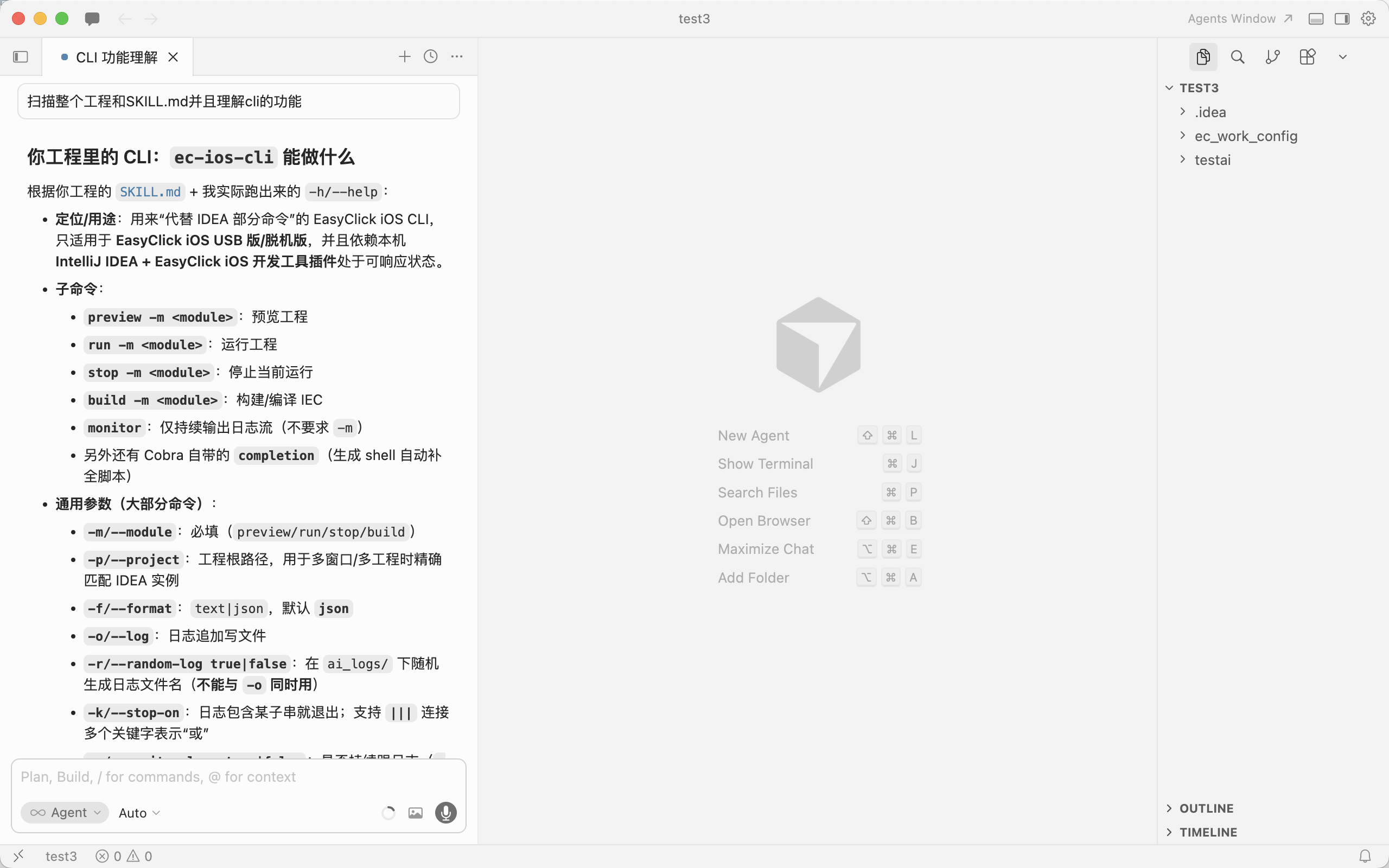
- Ask the AI to understand the project and scan structure + SKILL.md
Build IEC
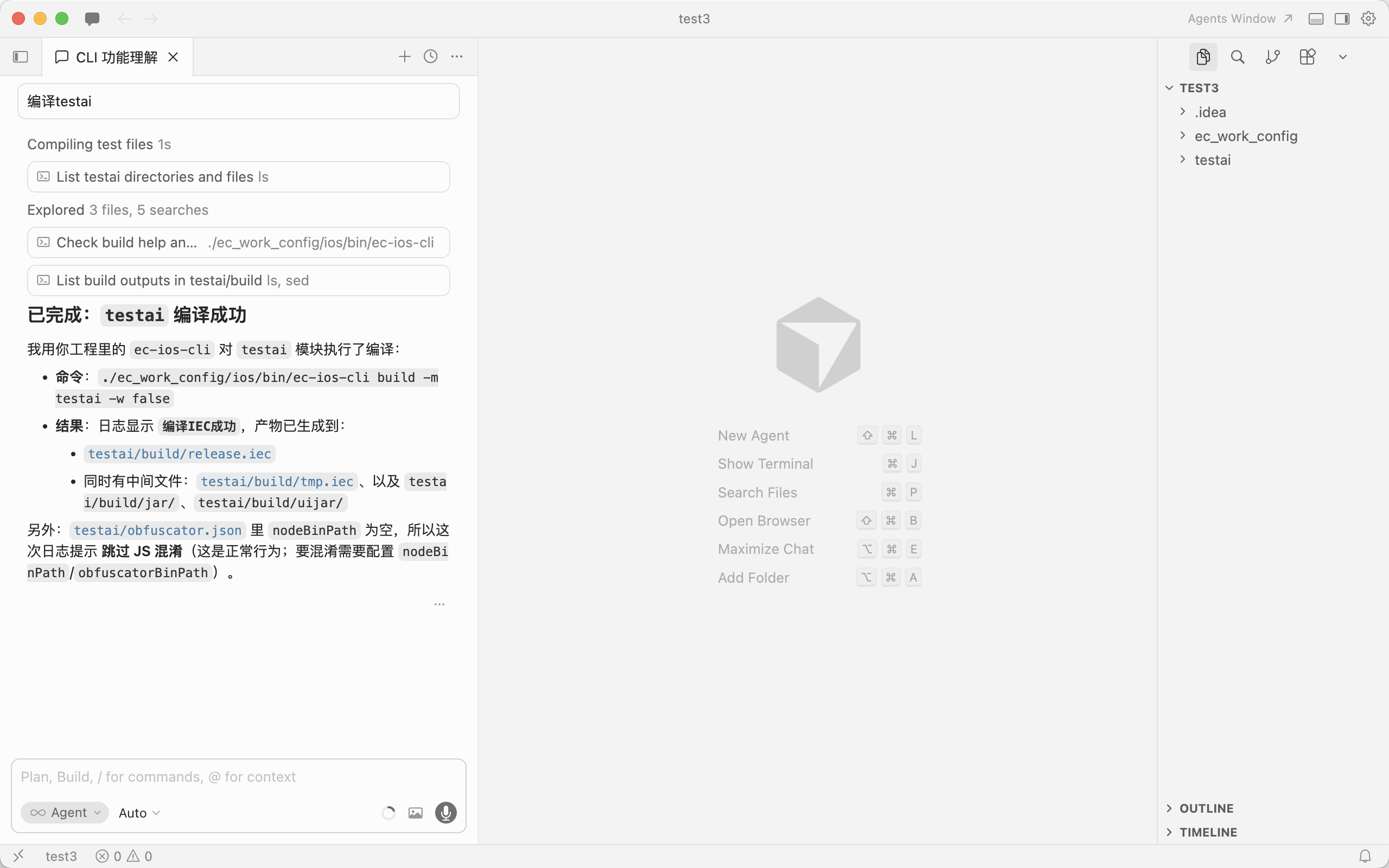
- Ask the AI to build, e.g. module
testai -
Preview project
- Requires a device connected in IDEA
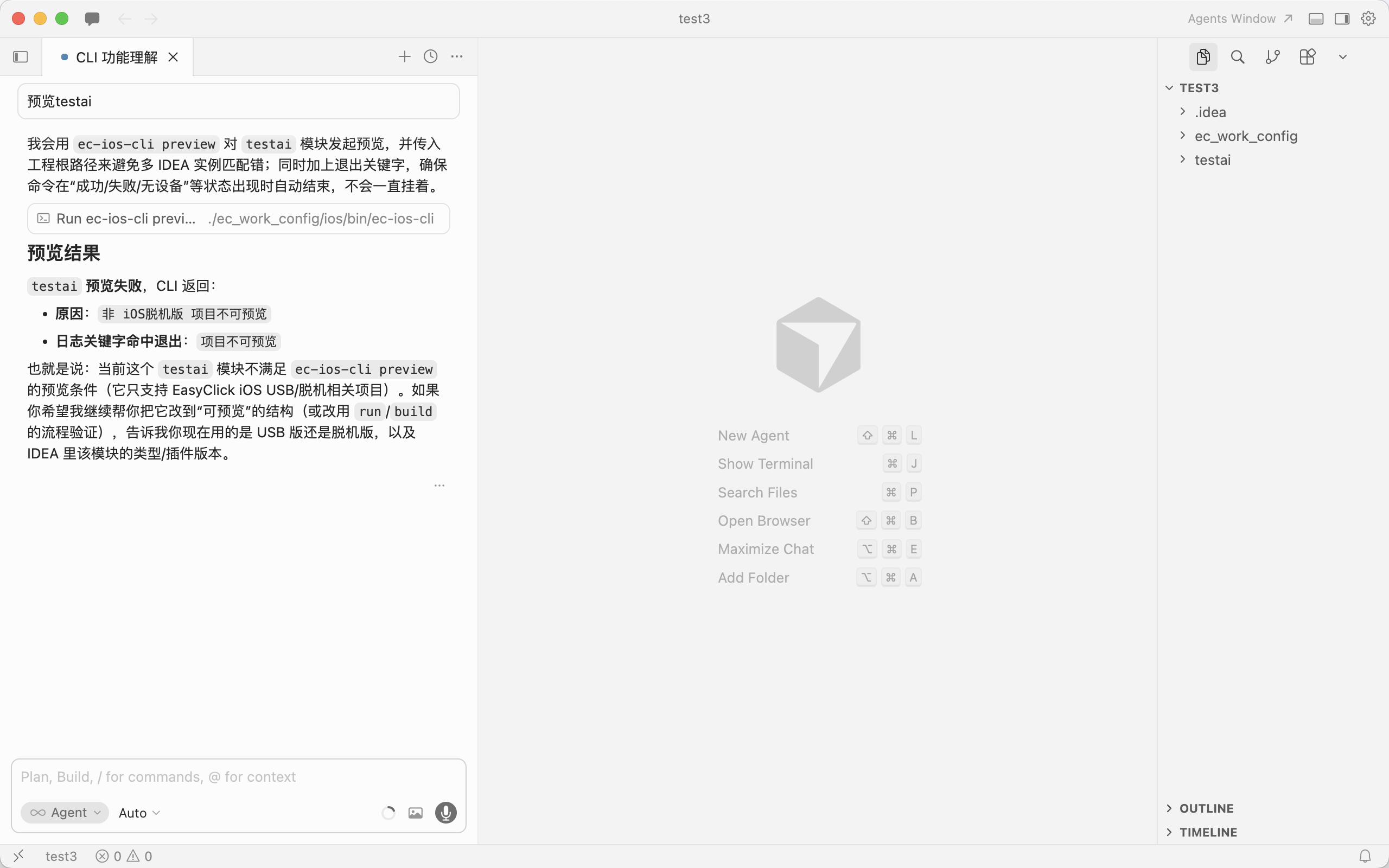
- Ask the AI to preview, e.g.
testai - iOS USB projects can't preview — only standalone iOS can
-
Run project
- Requires a device in IDEA
- Ask the AI to run, e.g.
testai -
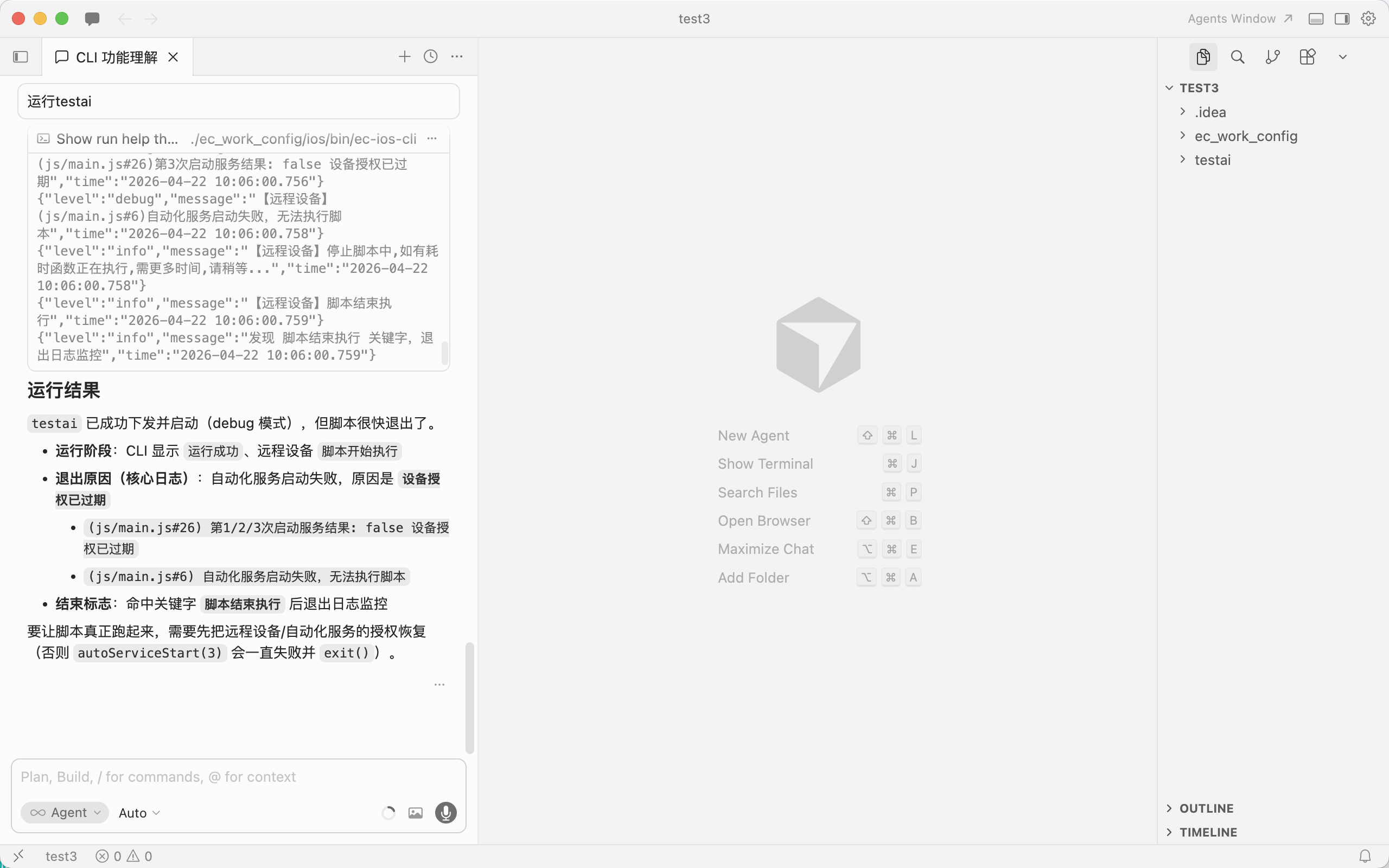
- After the AI writes logic, run and verify
-
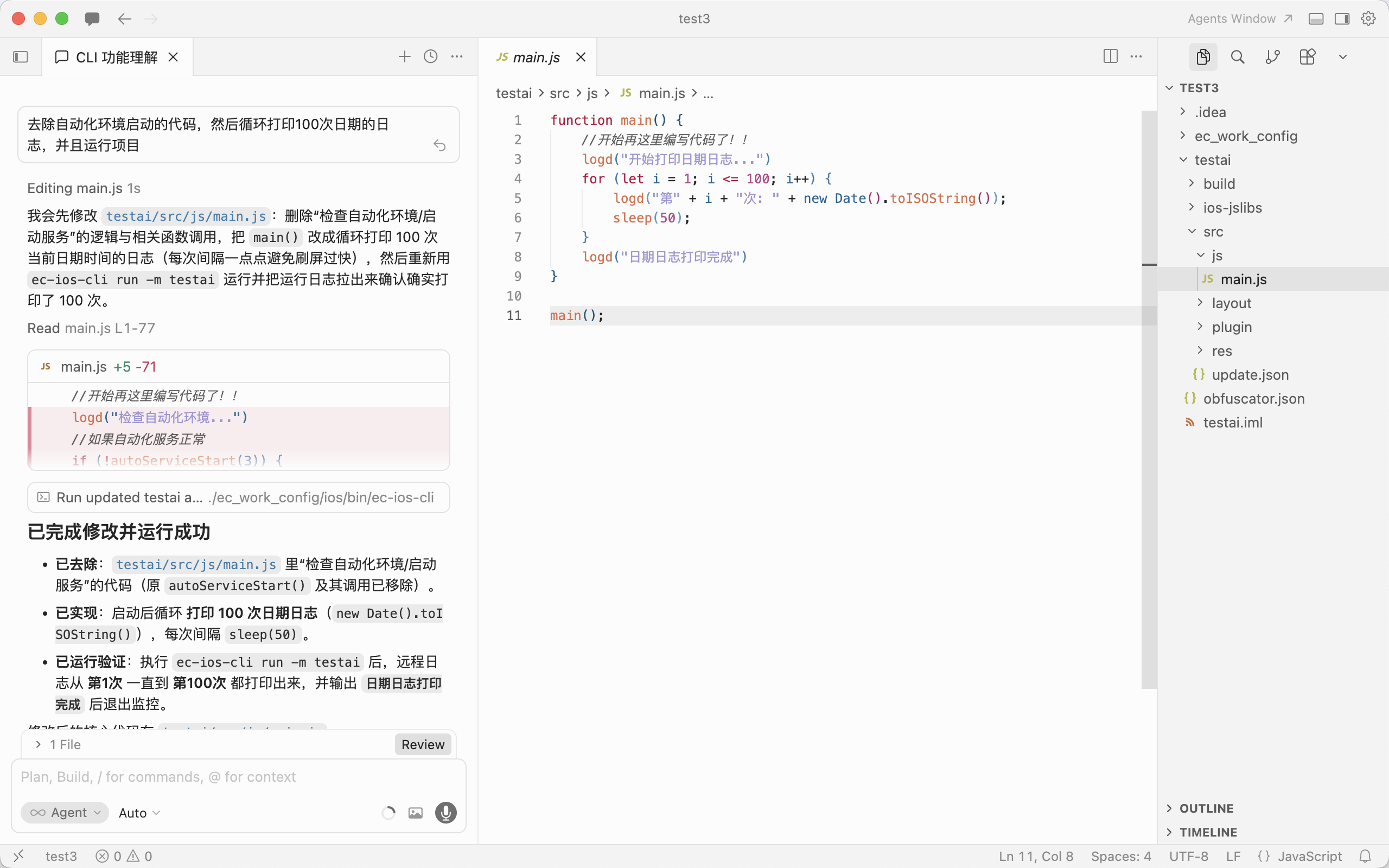
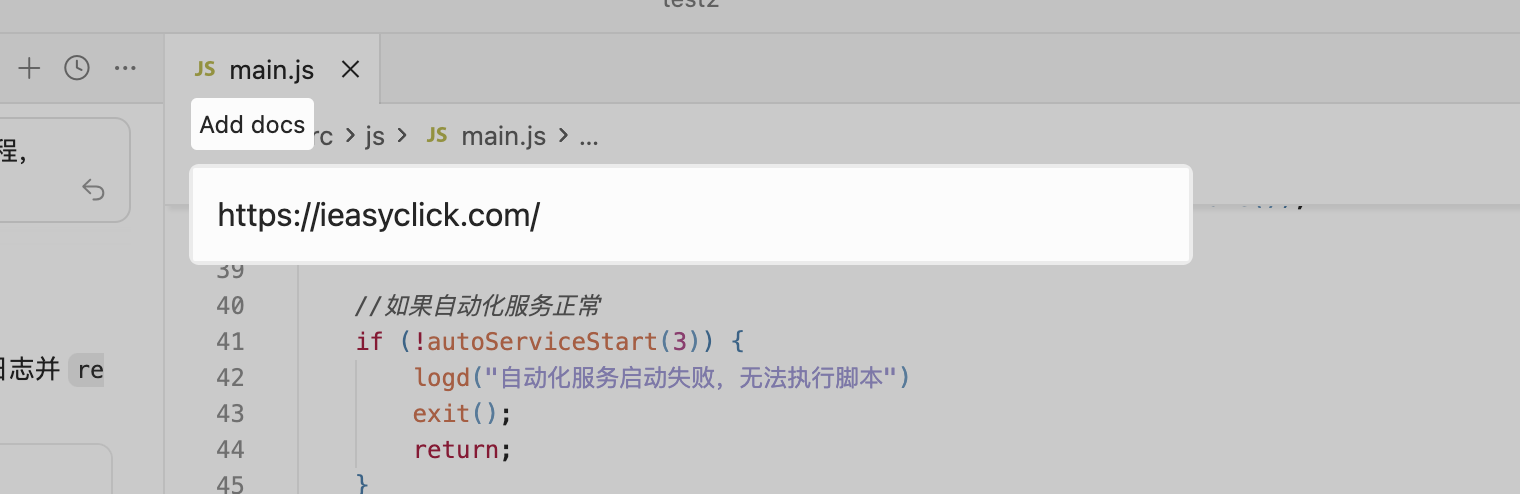
Feed docs to the AI
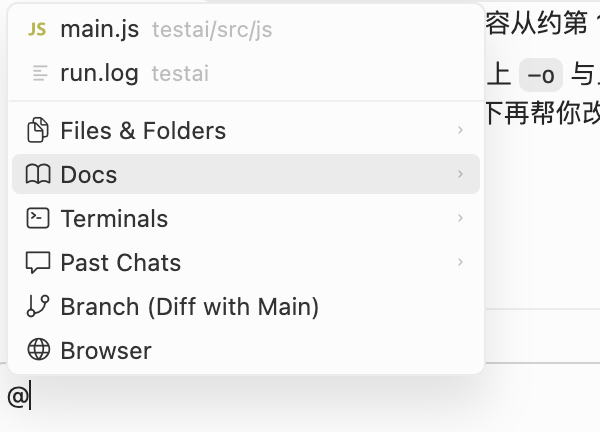
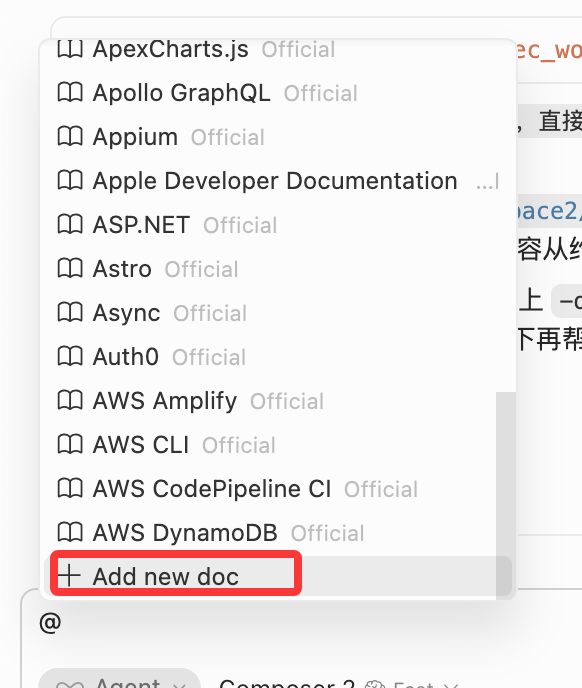
- In chat, type
@, choose Docs → Add new doc, add EC doc URLs for the AI to fetch -
-
-
More
- Auto-coding and log analysis — explore yourself; CLI commands describe what happened so the AI can act
CLI commands — SKILL.md
- The SKILL.md below is for the AI to ingest — you can skip reading it
---
name: ec-ios-cli
description: >-
 EasyClick ec-ios-cli install prerequisites, subcommands, flags, and examples.
 Use when a user or Agent needs to run, script, or troubleshoot this CLI; no implementation internals.
---

# ec-ios-cli reference

## Prerequisites
- Replaces some IDEA plugin actions; for EasyClick **iOS USB** and **standalone** editions only.
- **IntelliJ IDEA** running with **EasyClick iOS dev tools** plugin responsive.
- **Module name** in CLI matches the IDEA script module name.
- Multiple windows/projects: use **`-p` / `--project`** with the **project root** path as opened in IDEA.

## Binary and help
- **Bundled binary** (repo root): **`ec_work_config/ios/bin/ec-ios-cli`**
 - From repo root: `./ec_work_config/ios/bin/ec-ios-cli -h`
 - Agents/scripts should prefer this path over global PATH.
- If installed globally: **`ec-ios-cli`** (same program; rename locally if needed).
- Help: `./ec_work_config/ios/bin/ec-ios-cli -h`
- Subcommand help: `./ec_work_config/ios/bin/ec-ios-cli <subcommand> -h`

## Subcommands

| Subcommand | Purpose |
|--------|------|
| `preview` | Preview project |
| `run` | Run project |
| `stop` | Stop running script |
| `build` | Build IEC |
| `monitor` | Stream logs only (no `-m`) |
| `capture-image` | Screenshot path (AI assist) |
| `ocr-screen` | OCR current screen (AI assist) |
| `capture-node` | Capture UIX nodes path (AI assist) |
| `test-image` | Template match test (AI assist) |
| `ocr-local-image` | OCR local image (AI assist) |

**Notes:**
- `preview / run / stop / build / capture-image / ocr-screen / capture-node / test-image / ocr-local-image` need **`-m` (module)**.
- `monitor` has no module.
- `capture-image` aliases: `captureImage` / `fetch-image` / `fetchImage` (prefer `capture-image`).

## Common flags (except `monitor`)

| Flag | Meaning |
|------|------|
| **`-m` / `--module`** | **Required.** IDEA module name. |
| **`-p` / `--project`** | Optional. Project root (IDEA path). |
| **`-f` / `--format`** | Optional. Log format: `text` or `json`; default **`json`**. |
| **`-o` / `--log`** | Optional. Append logs to file. |
| **`-k` / `--stop-on`** | Optional. Exit when log contains substring; **`|||`** = OR. |
| **`-w` / `--monitor-logs`** | Optional. `true`/`false`. Default monitors; `-w false` ends after HTTP. |
| **`-r` / `--random-log`** | Optional. Random log file under `ai_logs/`; **not with `-o`**. |

**Constraints:**
- Optional flags need valid values.
- **`-r` and `-o` are mutually exclusive.**

## Boolean flags — use `=`

Bool flags like `--need-auto` / `--release` / `--monitor-logs`:
- `--flag` = **true**
- For **false**, use **`--flag=false`** (or `-a=false`)

Examples:
- `--need-auto` = `--need-auto=true`
- `--need-auto=false` explicitly disables

## `monitor` only

| Flag | Meaning |
|------|------|
| **`-f` / `--format`** | `text` or `json`, default `json`. |
| **`-o` / `--log`** | Append to file. |
| **`-k` / `--stop-on`** | Exit on match (`|||` OR). |
| **`-r` / `--random-log`** | Random log file (not with `-o`). |

## AI assist commands

Support `-m/-p/-f/-o/-r/-k/-w`; default `stop-on` includes `失败请登录` (login failure).

### `capture-image`
- **`--dir / -d`**: save dir (default project image dir)
- **`--image-format / -g`**: `jpg|png` (default `jpg`)
- **`--need-auto / -a`**: need automation service (default `true`)

EC=./ec_work_config/ios/bin/ec-ios-cli
$EC capture-image -m app
$EC capture-image -m app -d /tmp -g png
$EC capture-image -m app --need-auto=false

### `ocr-screen`
- **`--ocr-type / -t`**: default `paddleOcrNcnnV5`
- **`--padding / -x`**: default `32`
- **`--max-side-len / -l`**: default `640`
- **`--release / -e`**: default `false`
- **`--need-auto / -a`**: default `true`

EC=./ec_work_config/ios/bin/ec-ios-cli
$EC ocr-screen -m app
$EC ocr-screen -m app -t paddleOcrOnnxV5 -x 32 -l 640

### `capture-node`
- **`--dir / -d`**: save dir (default node dir)

EC=./ec_work_config/ios/bin/ec-ios-cli
$EC capture-node -m app
$EC capture-node -m app -d /tmp

### `test-image`
- **`--test-type / -t`**: `2` (live, default) or `1` (local image)
- **`--small-image-path / -s`**: required template path
- **`--big-image-path / -b`**: required for `-t 1`

EC=./ec_work_config/ios/bin/ec-ios-cli
# Live (default)
$EC test-image -m app -s /path/to/small.png
# Local image
$EC test-image -m app -t 1 -s /path/to/small.png -b /path/to/big.png

### `ocr-local-image`
- **`--path / -i`**: required image path
- Other flags same as `ocr-screen`

EC=./ec_work_config/ios/bin/ec-ios-cli
$EC ocr-local-image -m app -i /path/to/image.png
$EC ocr-local-image -m app -i /path/to/image.png -t paddleOcrOnnxV5 -x 32 -l 640

## Logging
- Most logs on **stderr**; **`-o`** / **`-r`** also write files.
- Default format **JSON** unless **`-f text`**.

## Classic examples (preview / run / stop / build / monitor)

# From repo root; EC = ./ec_work_config/ios/bin/ec-ios-cli
EC=./ec_work_config/ios/bin/ec-ios-cli

# preview
$EC preview -m app
$EC preview -m app -f json

# run
$EC run -m app
$EC run -m app -f json -o /tmp/easyclick.log
$EC run -m app -r true
$EC run -m app -w false

# stop
$EC stop -m app

# build (IEC)
$EC build -m app

# monitor (logs only)
$EC monitor
$EC monitor -f text -o /tmp/monitor.log -k "完成"

Multi-project / multi-IDEA (use `-p`):

./ec_work_config/ios/bin/ec-ios-cli run -m app -p /path/to/project/root

## Combined examples

EC=./ec_work_config/ios/bin/ec-ios-cli

# Legacy
$EC preview -m app
$EC run -m app -o /tmp/run.log -k "上传"
$EC stop -m app
$EC build -m app
$EC monitor -k "完成"

# AI assist
$EC capture-image -m app -d /tmp -g png
$EC ocr-screen -m app
$EC capture-node -m app
$EC test-image -m app -s /path/to/small.png
$EC ocr-local-image -m app -i /path/to/image.png