AI Agent handbook
- Control center 10.1.0 and later (new control center)
- AI Agent components are included in the installer (usually no separate install needed)
- URL: https://space.bilibili.com/477518868/lists/8630468?type=season
- Covers AI Agent setup and workflow usage
What it can do
AI Agent is the smart assistant in the new control center. Use natural language or drag-and-drop flowcharts to operate connected iPhones / iPads, for example:
- AI chat: Describe what you need in Chinese, e.g. “Open Safari on the first phone,” and AI understands and schedules execution
- Workflows: Turn common actions into reusable automation flows; one-click run and multi-device runs; no Token usage at runtime, no LLM connection required
- AI workflow authoring: Describe steps in natural language in the editor and let AI generate or edit the flow
- Image/color matching: Template matching, color-offset matching, with preview crop, one-click center pick, then tap
- OCR / VLM: Read text, vision LLM element location (when the UI tree is not enough)
- External tools (optional): Connect CLI tools, HTTP APIs, MCP services, etc. for flows or chat to call
- Start the new control center
- Click "AI Agent"
Background services are managed by the new control center — no separate programs to start.
All AI workflows (including chat-driven device control, trial runs, batch tasks) require a USB device license, plus automation IPA or BLE/OTG setup per step type. Without these, you often see license failures or taps/screenshots that do nothing.
FAQ quick reference
Which license do I need? Same as screen license?
AI Agent needs a USB device license (not a screen license). After purchase, bind in License Center → Batch license. See FAQ quick reference · Licensing and Prerequisites & licensing.
Do I have to configure an LLM?
AI chat and AI workflow authoring need an LLM; running / trial-running saved workflows do not. See FAQ quick reference · LLM and Config & data dirs.
Do workflows consume Tokens?
No. Trial runs, batch runs, and running .spk flows do not consume chat LLM Tokens; only AI chat and AI workflow authoring bill through your LLM provider. See FAQ quick reference · Token.
→ Full details: FAQ quick reference
UI overview
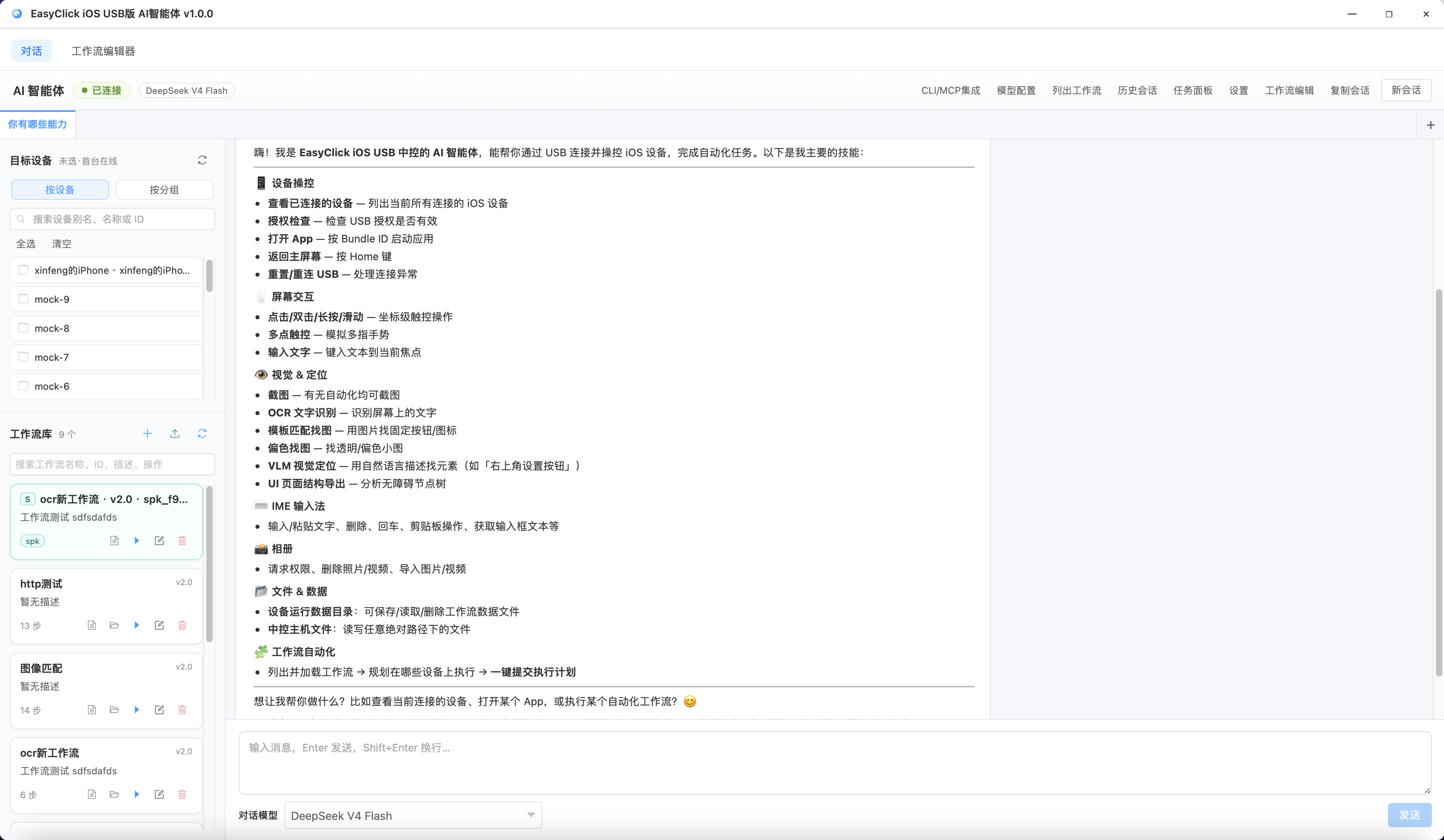
→ More screenshots and onboarding path: UI preview
Recommended reading order
| # | Doc | When to read |
|---|---|---|
| 0 | Prerequisites & licensing | Required: USB license, automation IPA, BLE/OTG setup |
| 0b | FAQ quick reference | Collapsible FAQ: license type, LLM, Token |
| 1 | Getting started | First use: configure LLM, pick devices |
| 1b | UI preview | Main UI screenshots and 30-second onboarding path |
| 2 | AI chat | Drive devices via chat |
| 3 | Workflow editor | Arrange flows, trial run, variable pool, save |
| 4 | Workflow.spk | Export .spk for customers, import read-only flows |
| 4b | Workflow.spl license | Issue/import license, expiry and deviceId |
| 5 | Image/color matching | Template/color-offset match, preview crop, tap icons |
| 6 | Workflow step reference | Look up how to configure a step |
| 7 | Config & data dirs | Storage path, models, OCR/VLM, concurrency |
| 8 | External integration | CLI / HTTP / MCP (advanced) |
| 8b | Scheduled tasks | Run workflows on a schedule |
| 9 | Tasks & monitoring | Execution progress, pause and resume |
| 10 | Troubleshooting | Won’t open, won’t connect, execution failures |
How this differs from “AI-assisted coding”
| AI-assisted coding | AI Agent (this handbook) | |
|---|---|---|
| What it does | Write scripts in Cursor / IDEA | Operate connected devices in a dedicated UI |
| Best for | EC script developers, complex business logic | Quick automation trials, batch workflow runs |
| UI | IDE | AI Agent window |
Use both: complex logic in scripts, daily batch tasks in AI Agent.