Java-JS hybrid development
Overview
- Hybrid development combines Java and JS in one project — JS calls Java methods
- After compilation, Java code and JARs become a
defaultplugin.apkplugin - This chapter focuses on EasyClick hybrid development
Create a Java-JS hybrid project
- In IDEA, create a project and select EasyClick Java-JS Hybrid Project; use JDK 1.8 (minor version does not matter)
- Click Next and finish — the corresponding Java classes and configuration are generated automatically
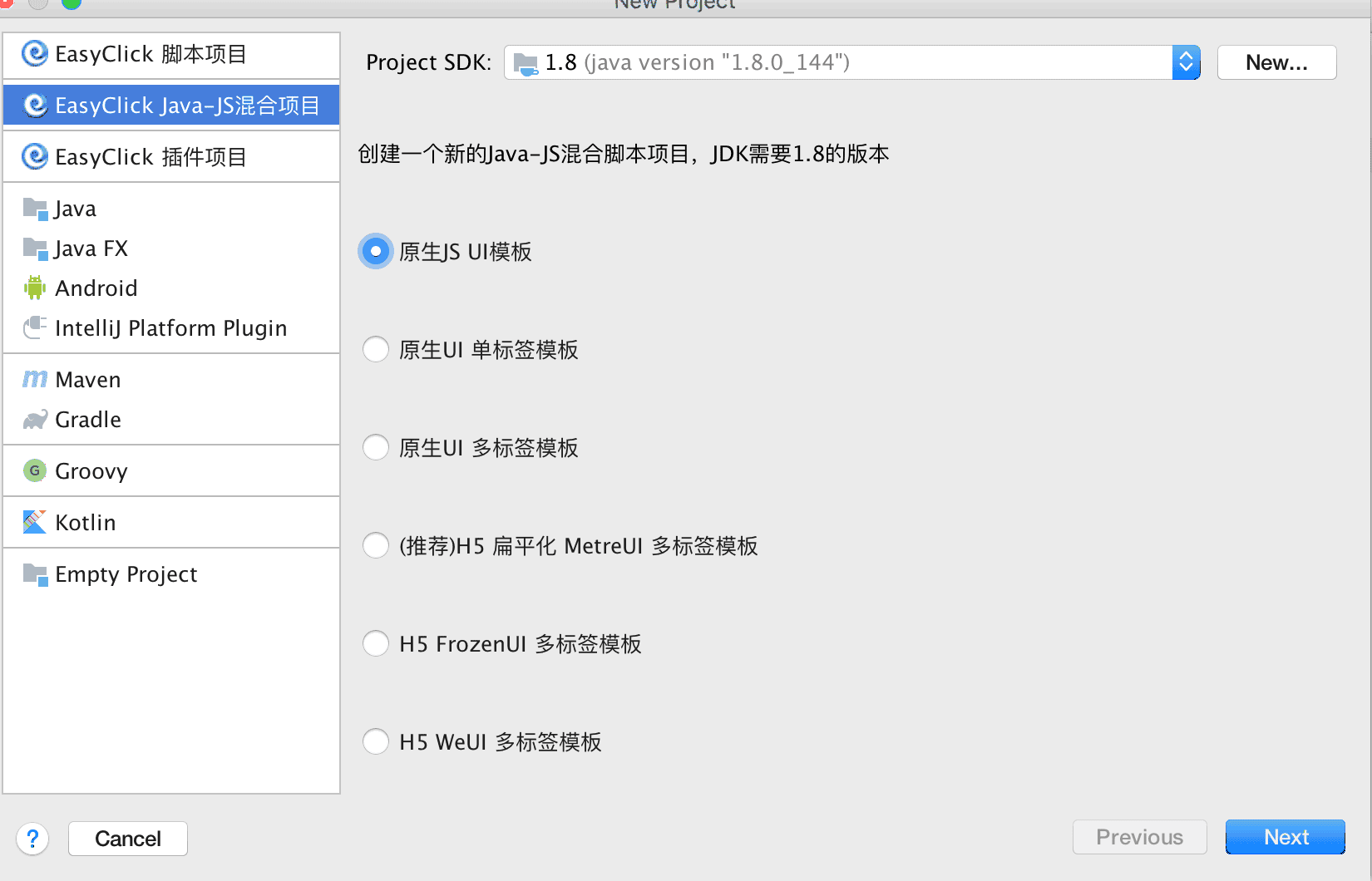
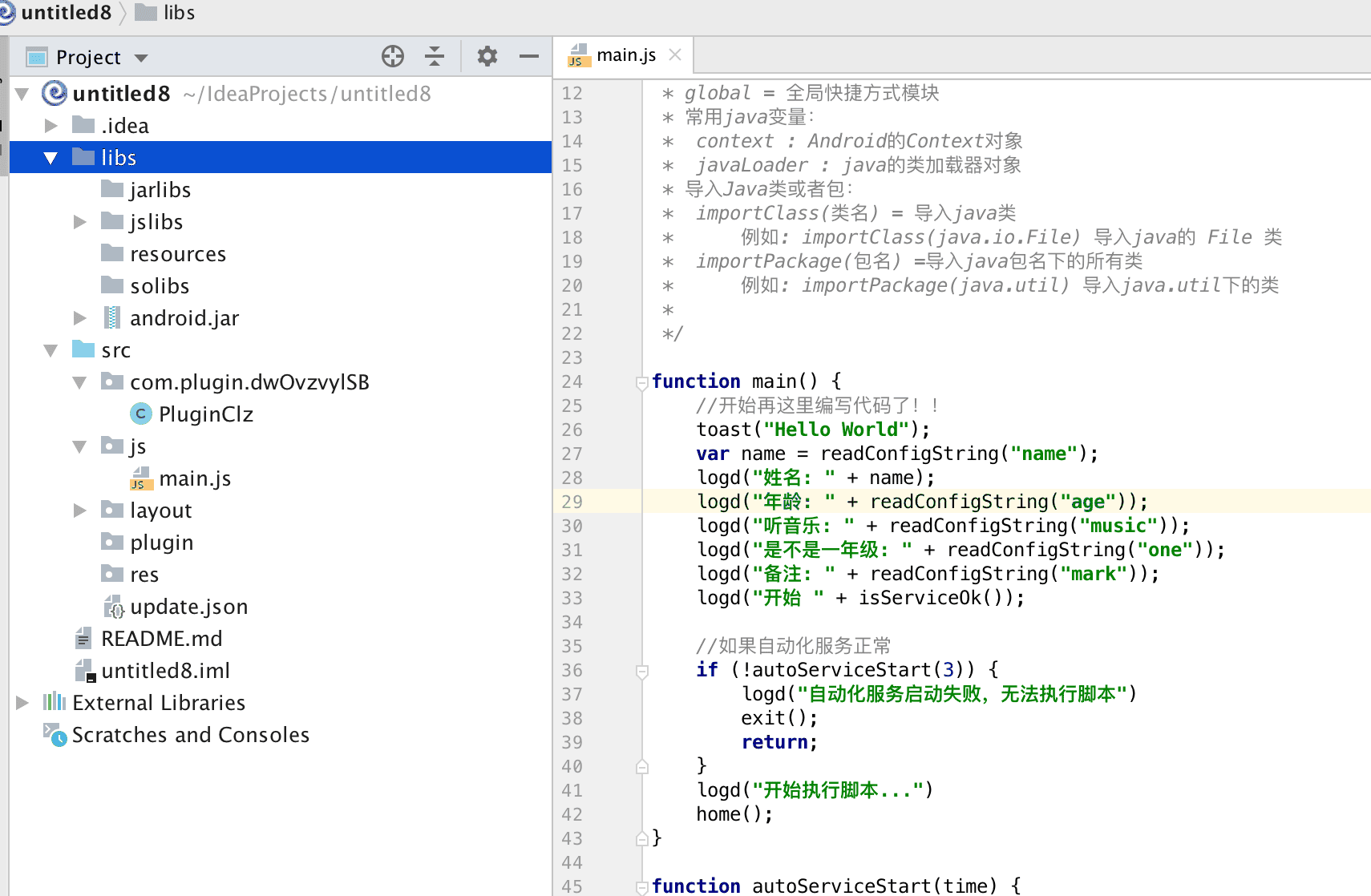
Directory structure
src/js/main.js— test entry for JS calls into plugin methodssrc/com/— Java source;PluginClzis the default plugin entry classlibs/jarlibs— third-party JARs, merged into the pluginlibs/solibs— native.solibraries, compiled into the pluginlibfolderlibs/resources— resource files, compiled into the pluginresourcesfolderlibs/jslibs— JS libraries for testing only; not compiled into the plugin
- For JNI, put
.sofiles inlibs/solibs
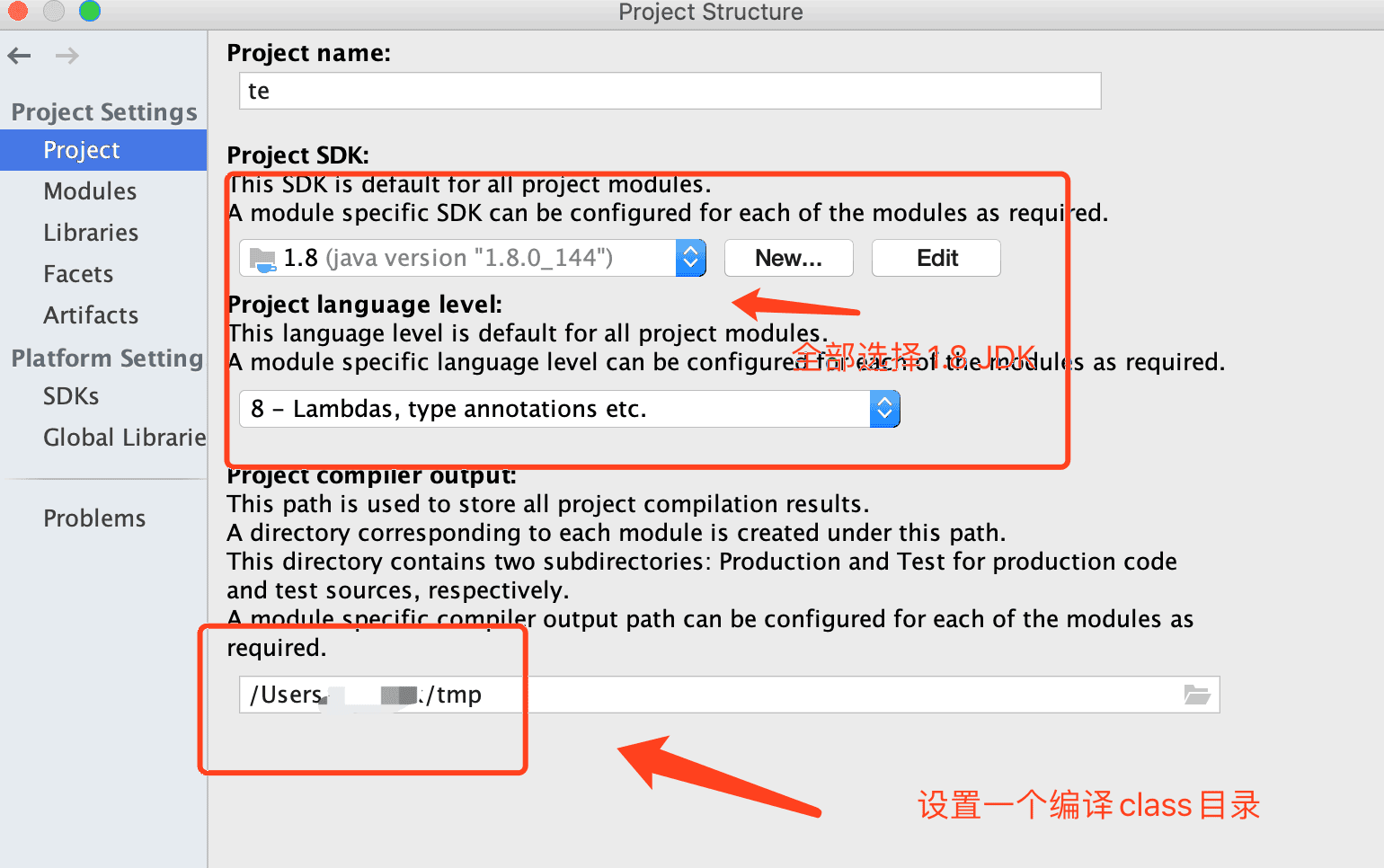
Configure JDK and output class directory
- Right-click the project
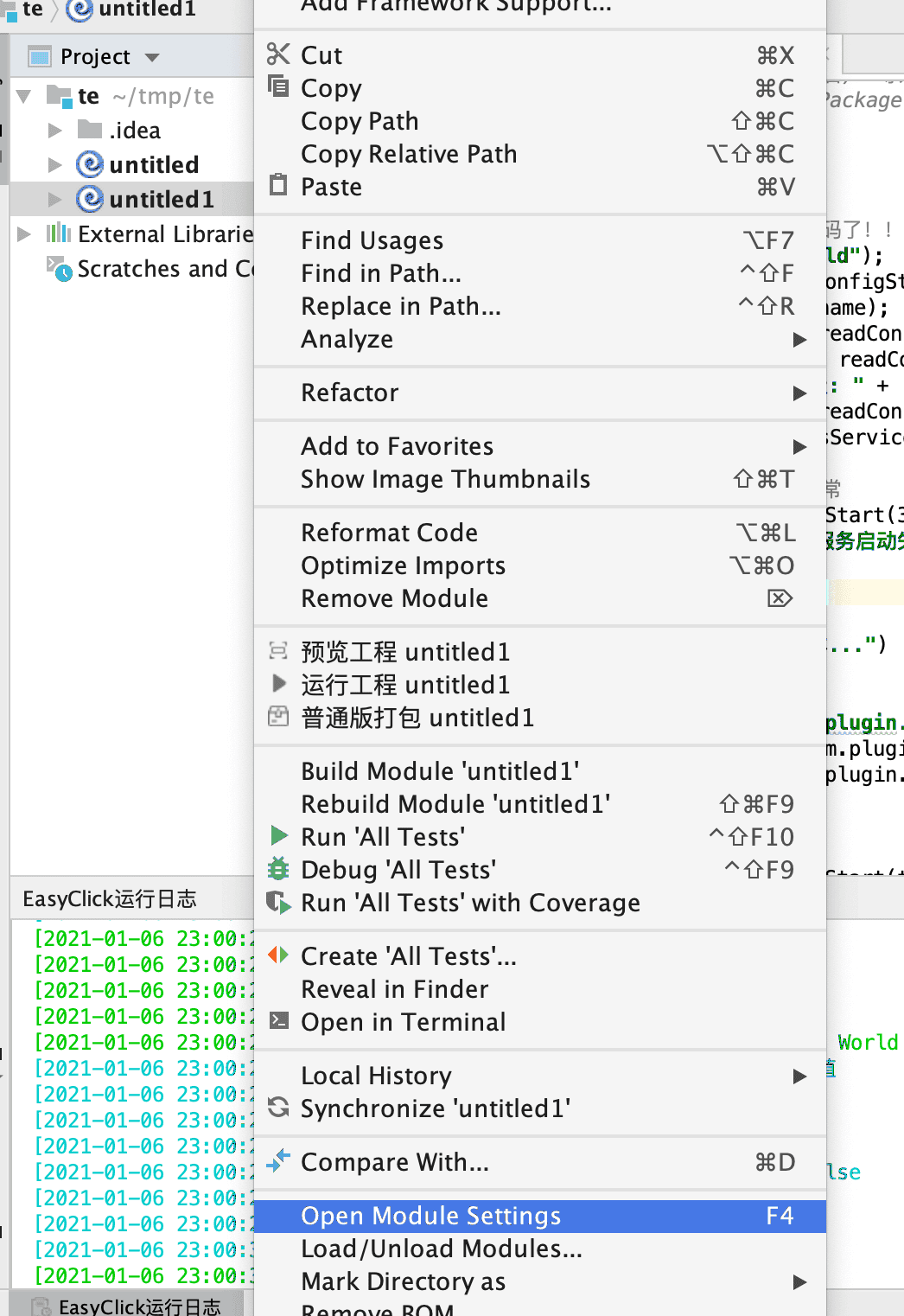

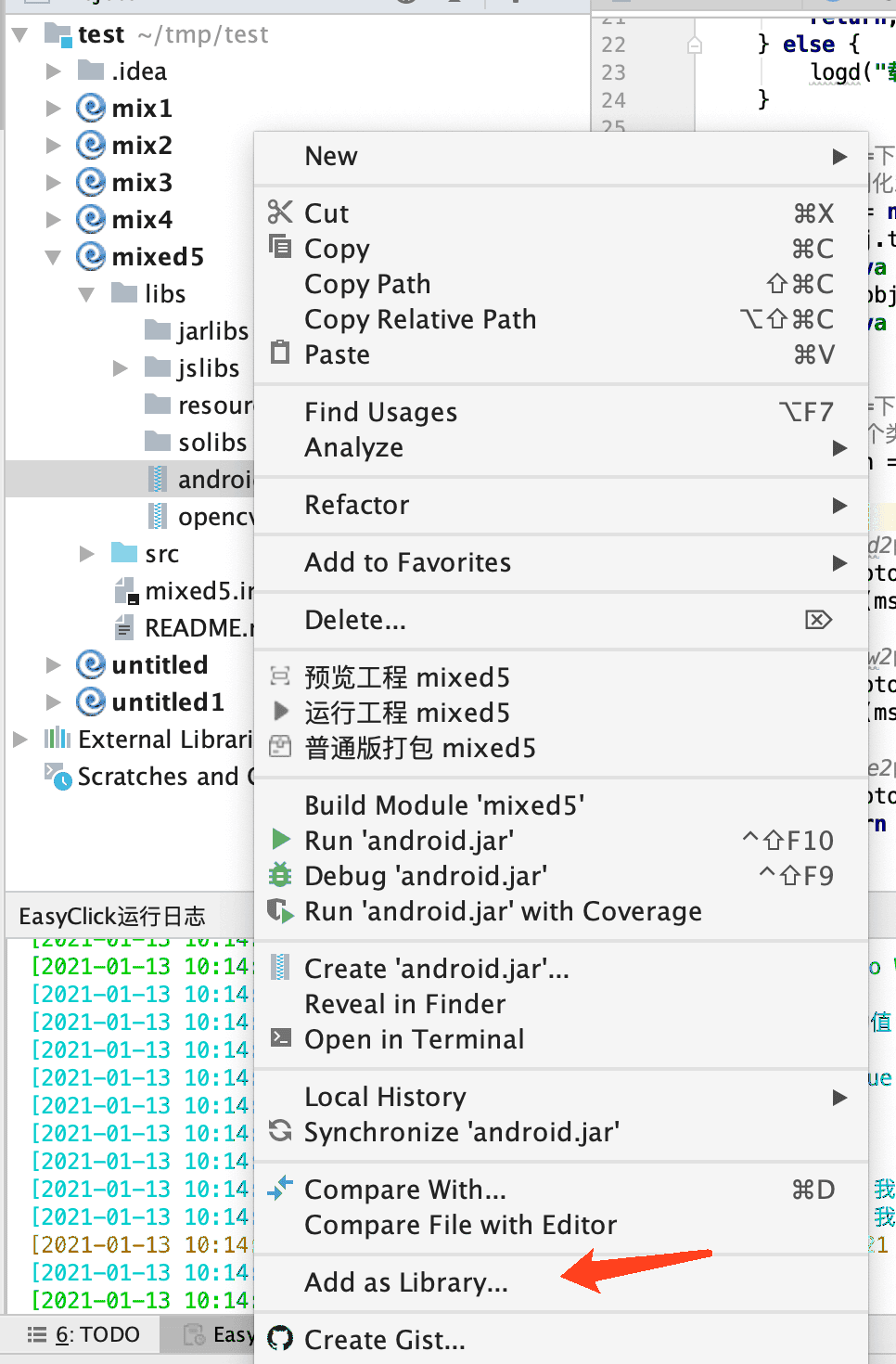
Add android.jar
- Right-click
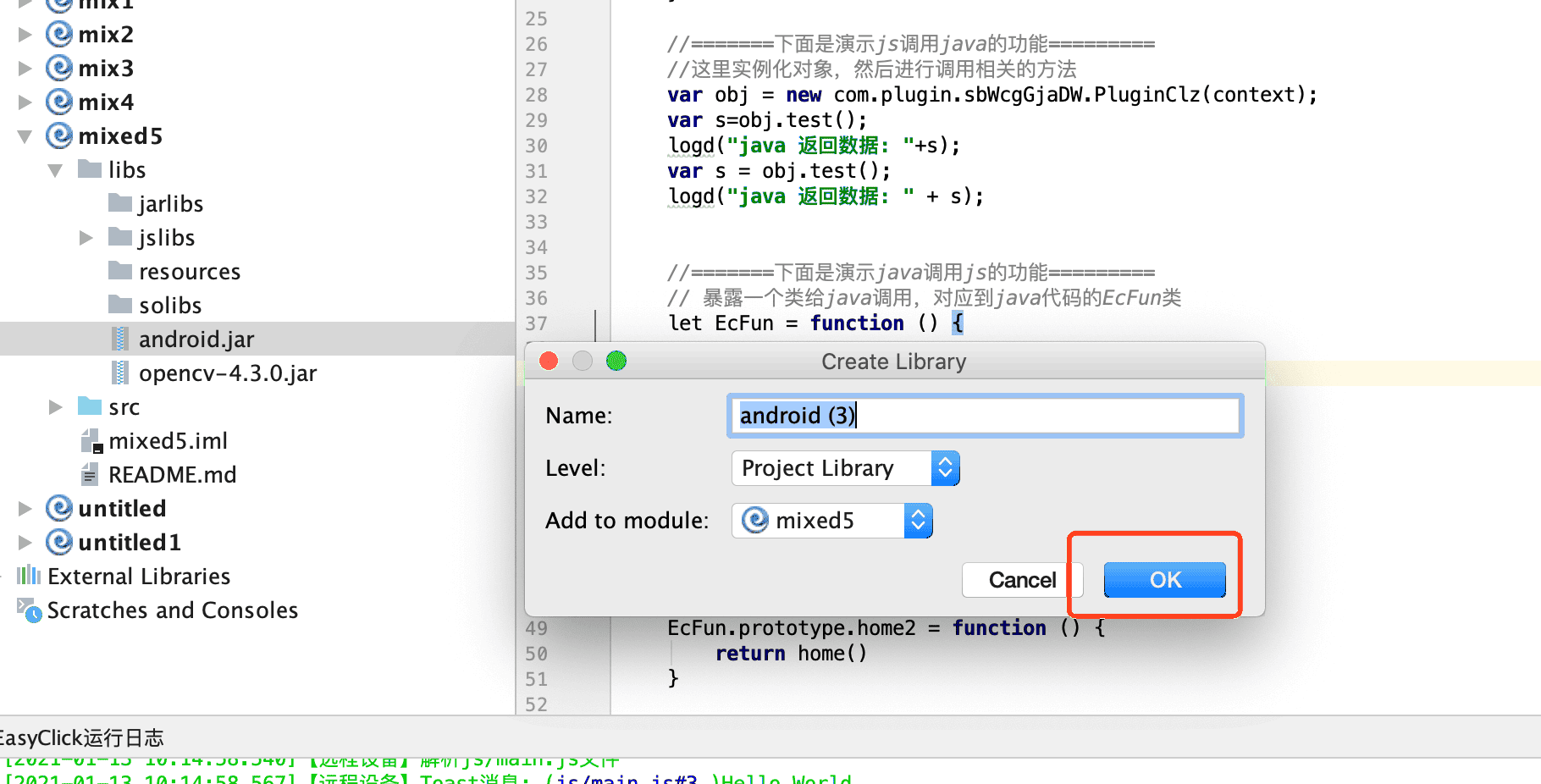
android.jarand choose Add as Library
- Click OK
Default Java class PluginClz
PluginClzis the default generated Java classtestis the default generated method- See
main.jsfor how it is invoked
Using Java from main.js
- After Java compilation, the plugin is named
defaultplugin.apk— callloadDex("defaultplugin.apk")when the script runs - Load the plugin with the loadDex function
- Then use
importClassorimportPackageto import Java classes - Instantiate with
newand call methods
Run
- Use the menu EasyClick Dev Tools → Run Project (device must be connected)
Package
- Use EasyClick Dev Tools → Package Project; check the EasyClick run log for output